Read with Claude
 Read with ChatGPT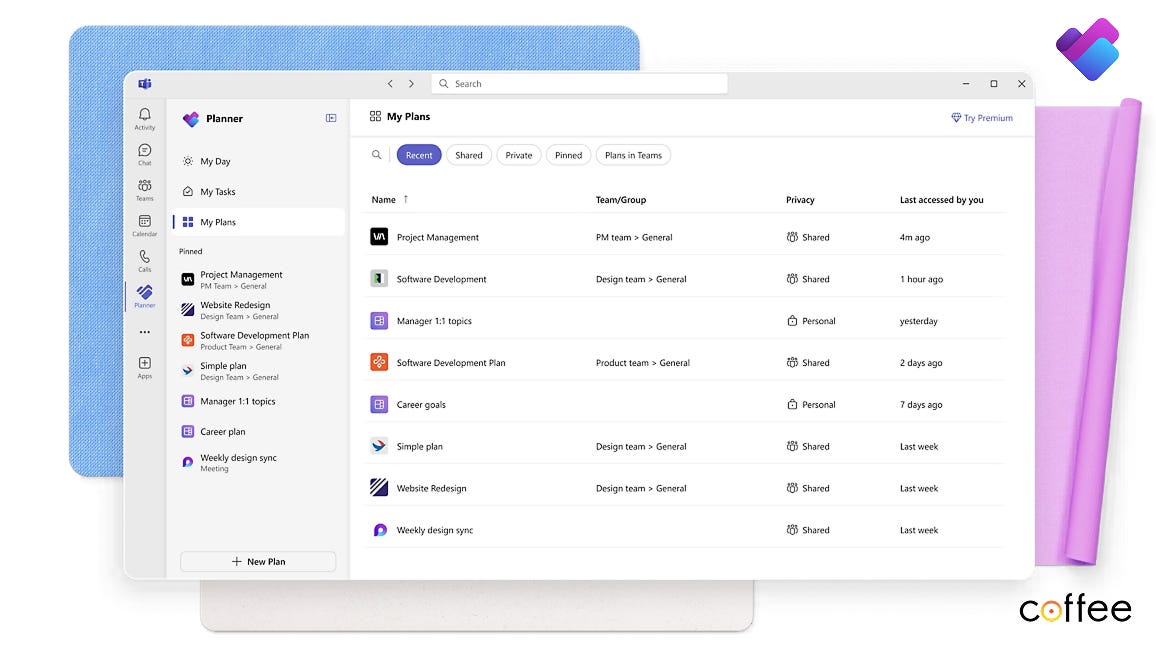
We often just scratch the surface with the tools we use every day. We learn enough to get by, then stop exploring. We become comfortable with the familiar and overlook the deeper capabilities that could make our work faster, clearer, and more connected.
Microsoft Planner is one of those tools. Many teams use it for simple task assignments or deadline tracking, and stop there. But Planner can do far more when you know how to unlock its full potential.
Getting the most out of Microsoft Planner
A Shared Space for Work
At its core, Microsoft Planner is a task management tool built into Microsoft 365. It helps you:
- Create project plans
- Assign tasks to team members
- Set deadlines and track progress
- Collaborate with team members
- Keep conversations, files and updates in one place
It can replace updates that were scattered as notes, email and “who’s-doing-what” confusion with a shared workspace.
Getting Started — One Project at a time
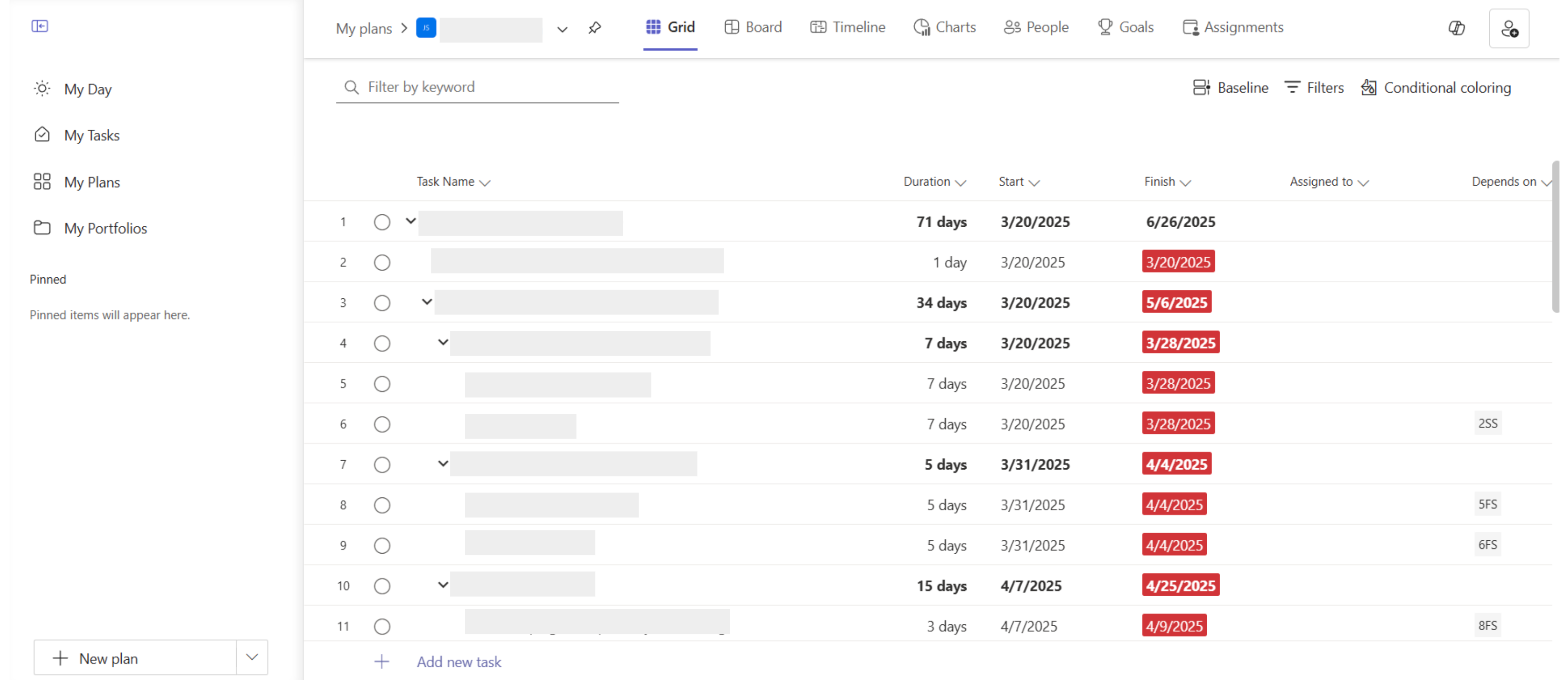
Starting is simple: choose a project, create a plan, add your tasks, and assign owners with due dates.
- Start with a project to manage in Planner.
- Create a plan, break it down into tasks and assign owners and deadlines.
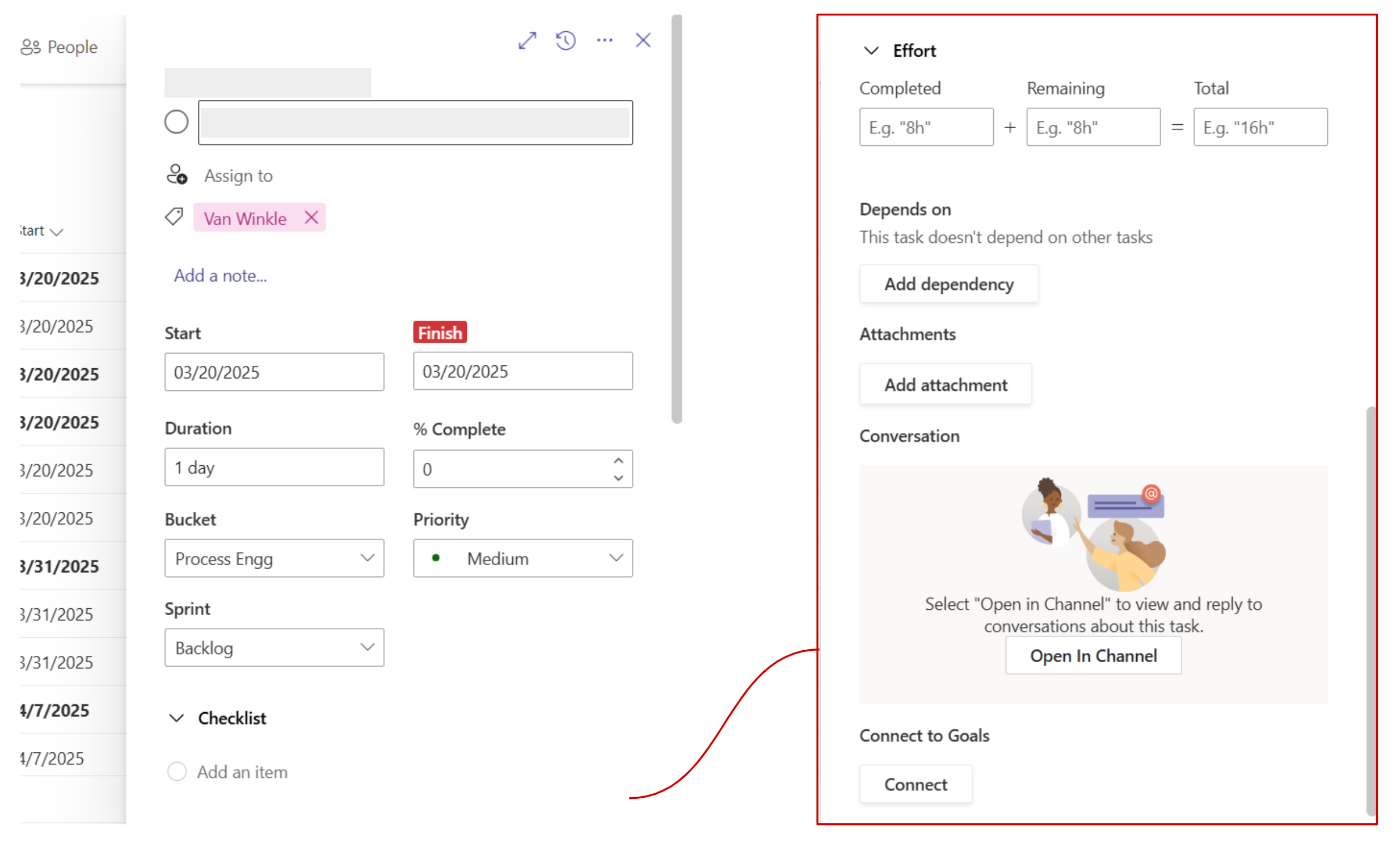
- When you click on a task in Microsoft Planner, you see its detail view, which allows you to manage and update everything related to that task.
Power in Integration — Making it work for the whole team
Planner becomes far more powerful when connected with other Microsoft 365 tools. Here is how it works with Teams, SharePoint and Outlook.
Microsoft Teams
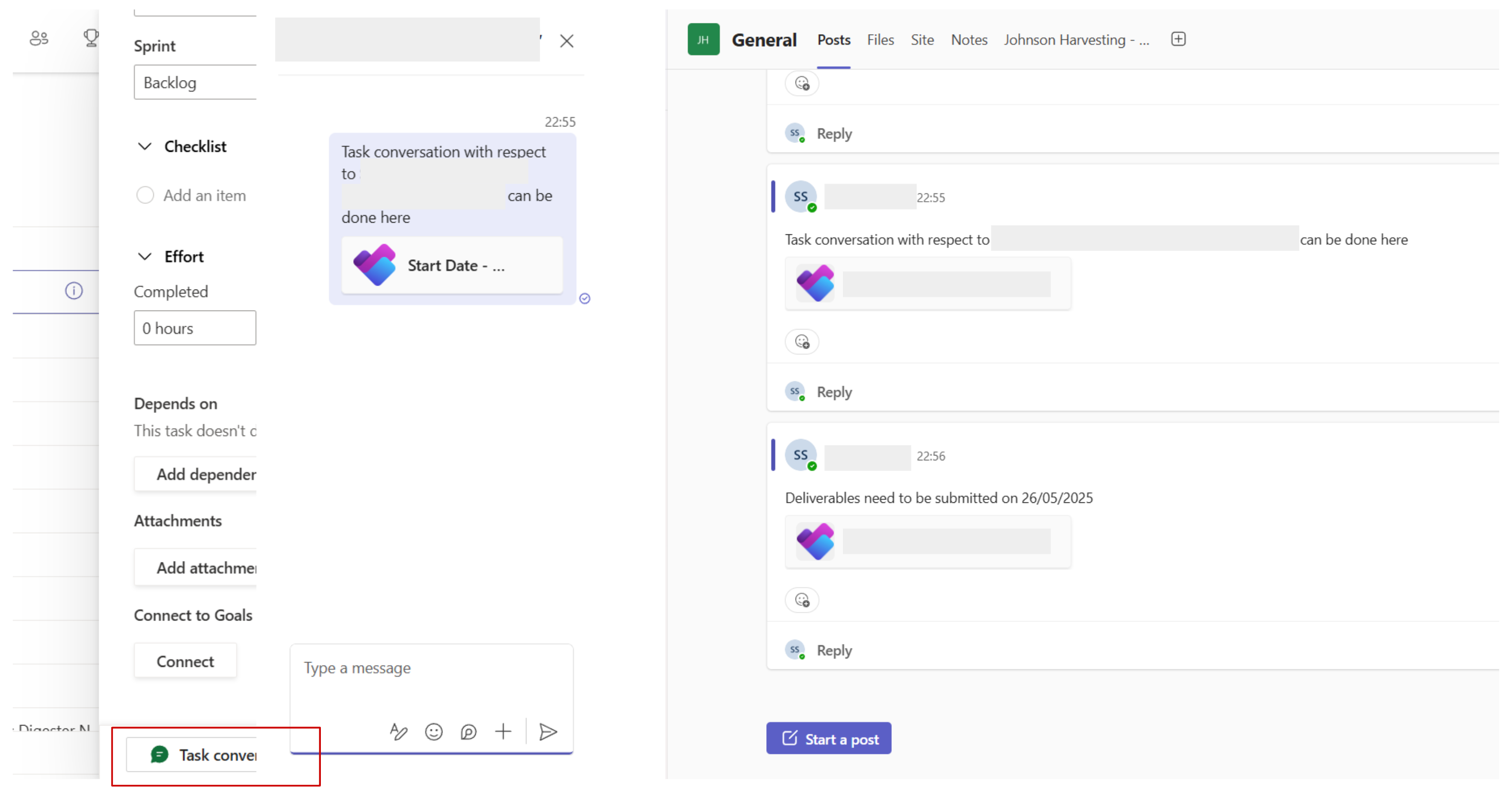
Since there will be updates across multiple platforms, we can integrate Teams to maintain all the conversations in one place.
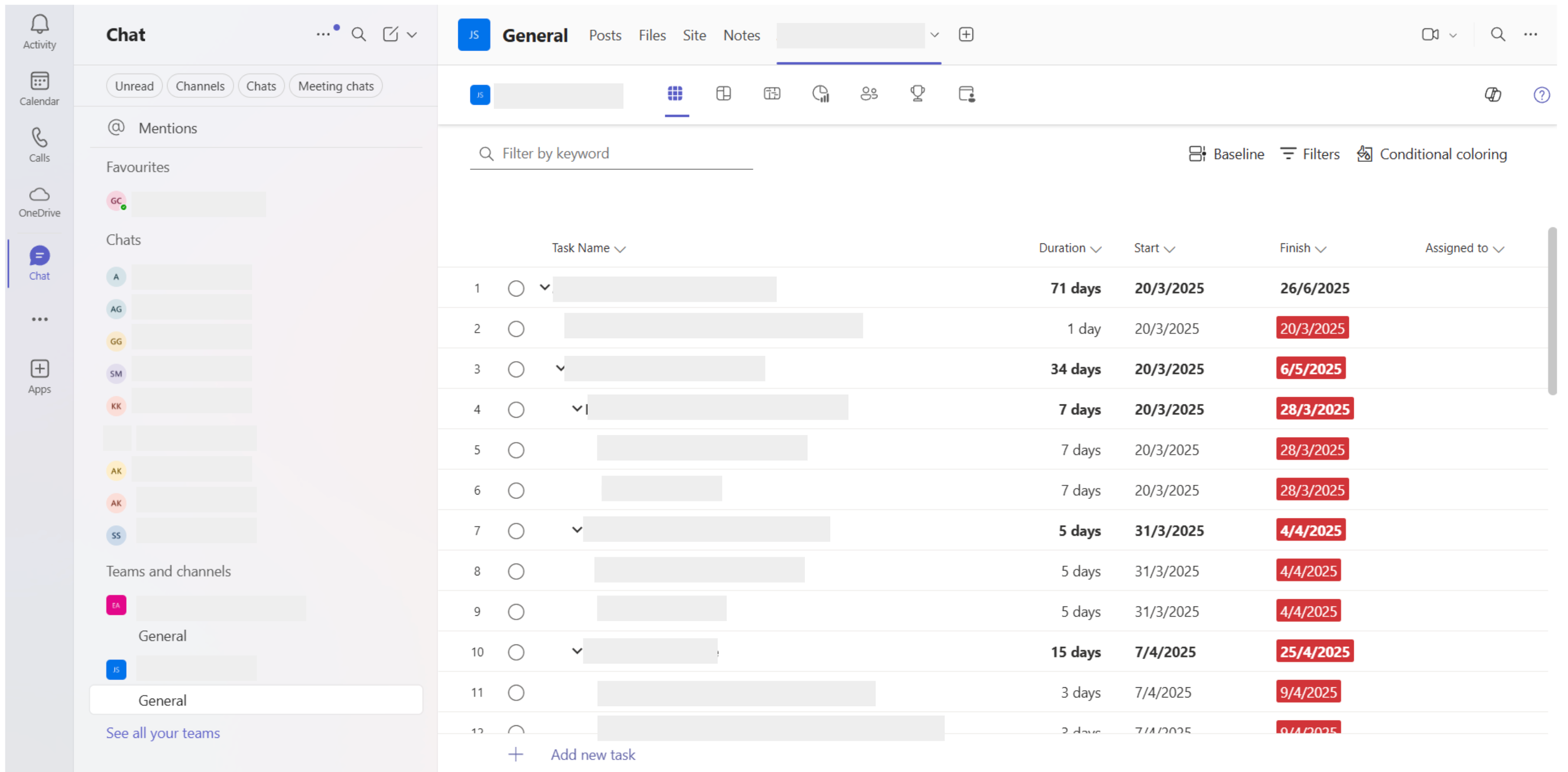
Chat directly about a specific task inside Teams.
SharePoint
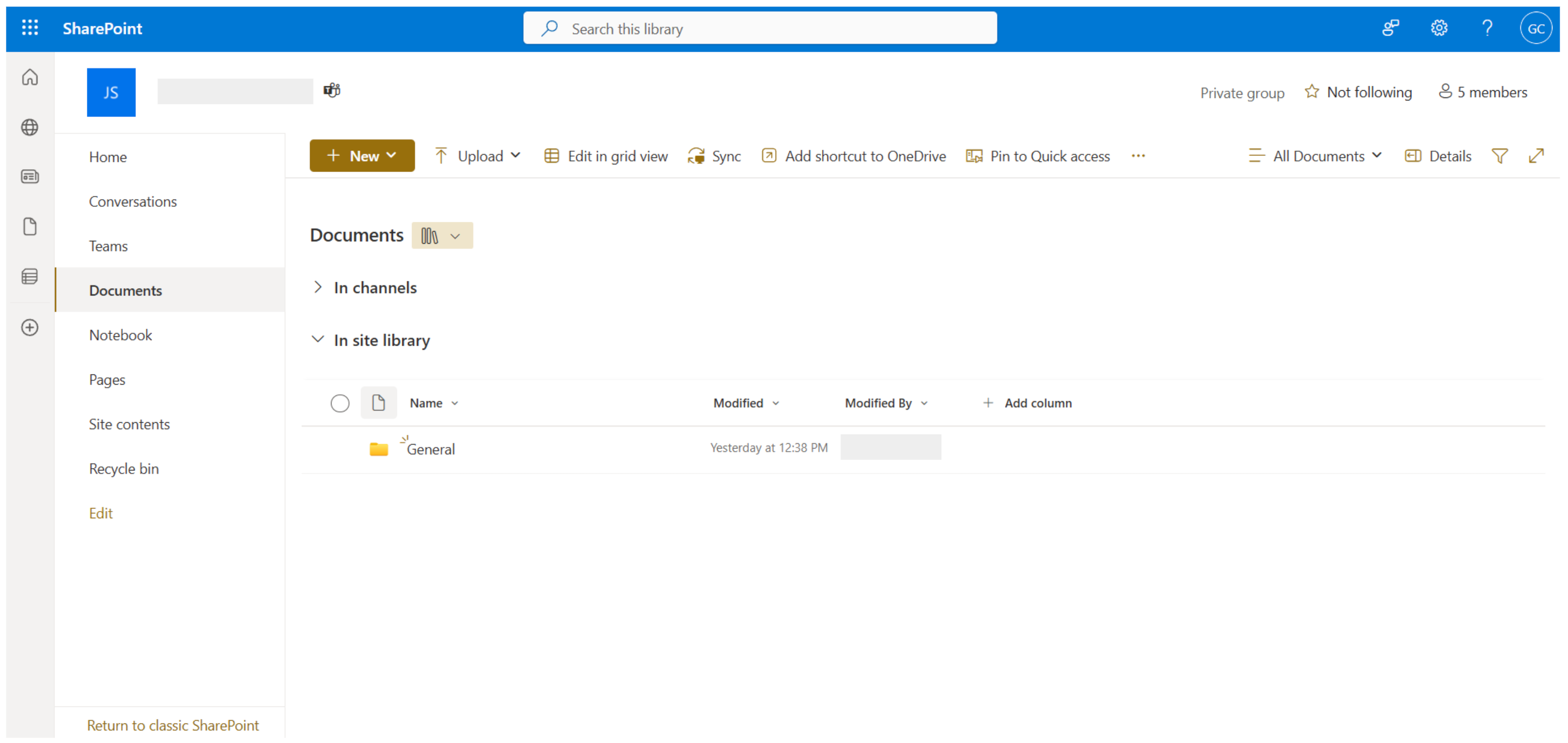
- Sometimes they will be attachments under each tasks, we can integrate Planner with SharePoint.
- This means all files attached to tasks are stored in the plan’s SharePoint document library.
- Team members can open these files directly from the task or from SharePoint.
Outlook & Email Notifications
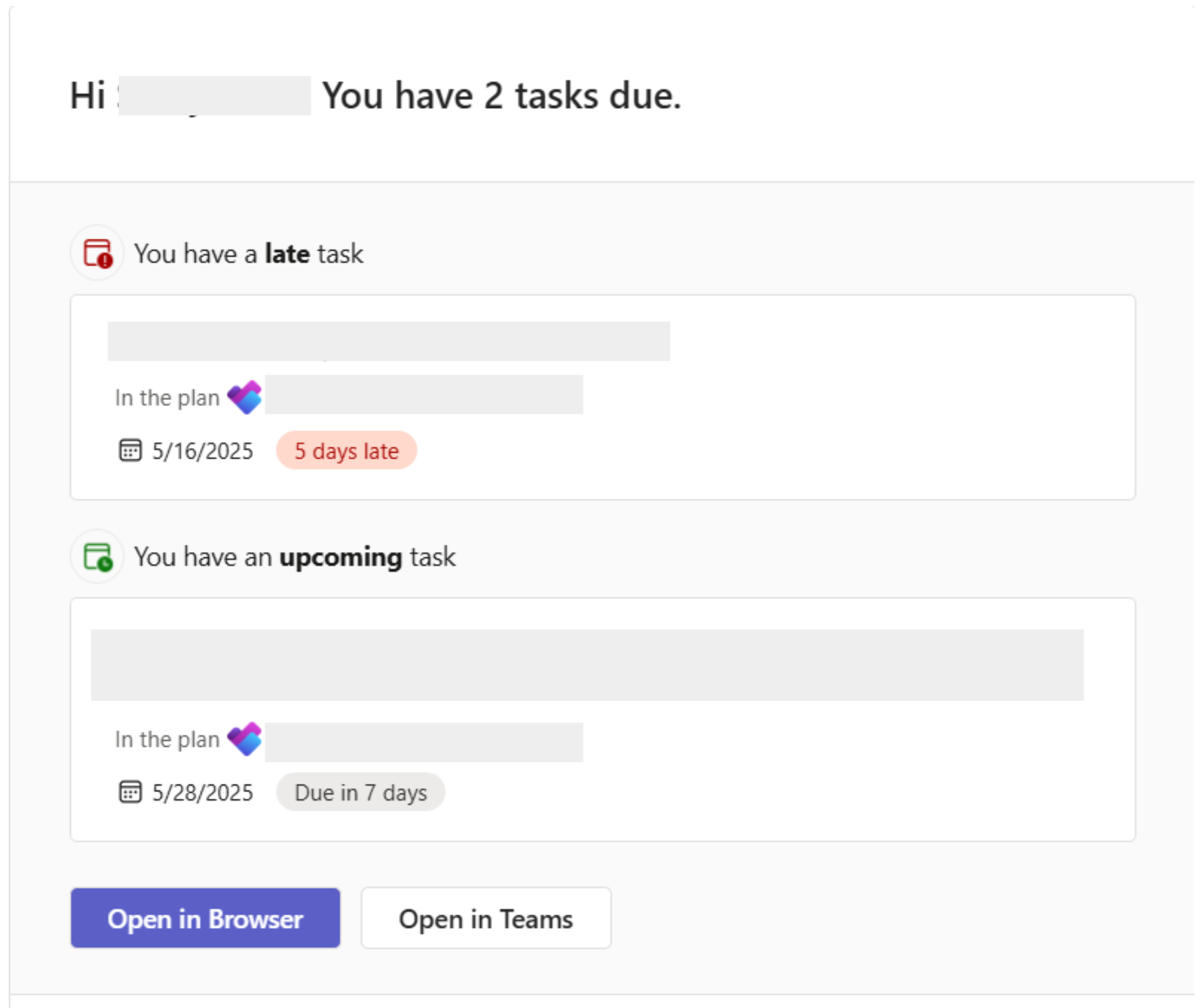
- It sends email notifications to help keep team members informed and on track.
- Whenever a task is assigned to someone, they receive an email with the task details, including its title, due date and a link to open it directly in Planner.
- As deadlines approach, Planner will send reminder emails to the assignee, helping prevent missed due dates.
Dashboards That Give You Multiple Perspectives
Dashboards always help give an eagles eye view of a project. Planner supports multiple views that gives you actionable insights.
Visualizing the Process of Outcomes
Think of each view in Planner as a different dashboard. Each one offers its own way to understand the project’s progress, bottlenecks, and next steps.
1. Grid view
- It shows tasks in a simple table-like layout, showing key details such as task name, assignee, start and due dates, duration, and progress.
- We can look at multiple tasks to see deadlines and plan accordingly
2. Board view
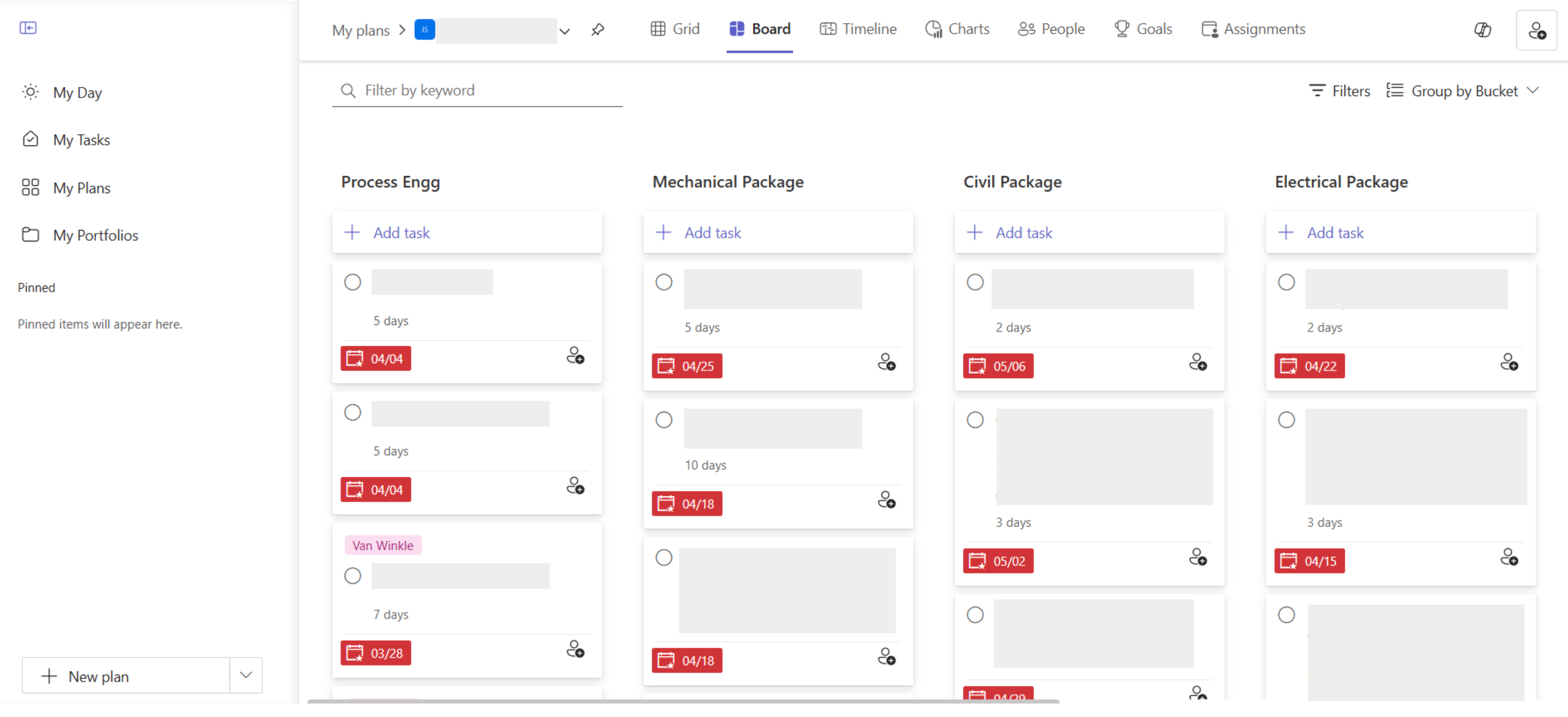
- Here the tasks are organized into “Buckets”.
- You can drag and drop tasks between buckets to update their status.
3. Timeline View
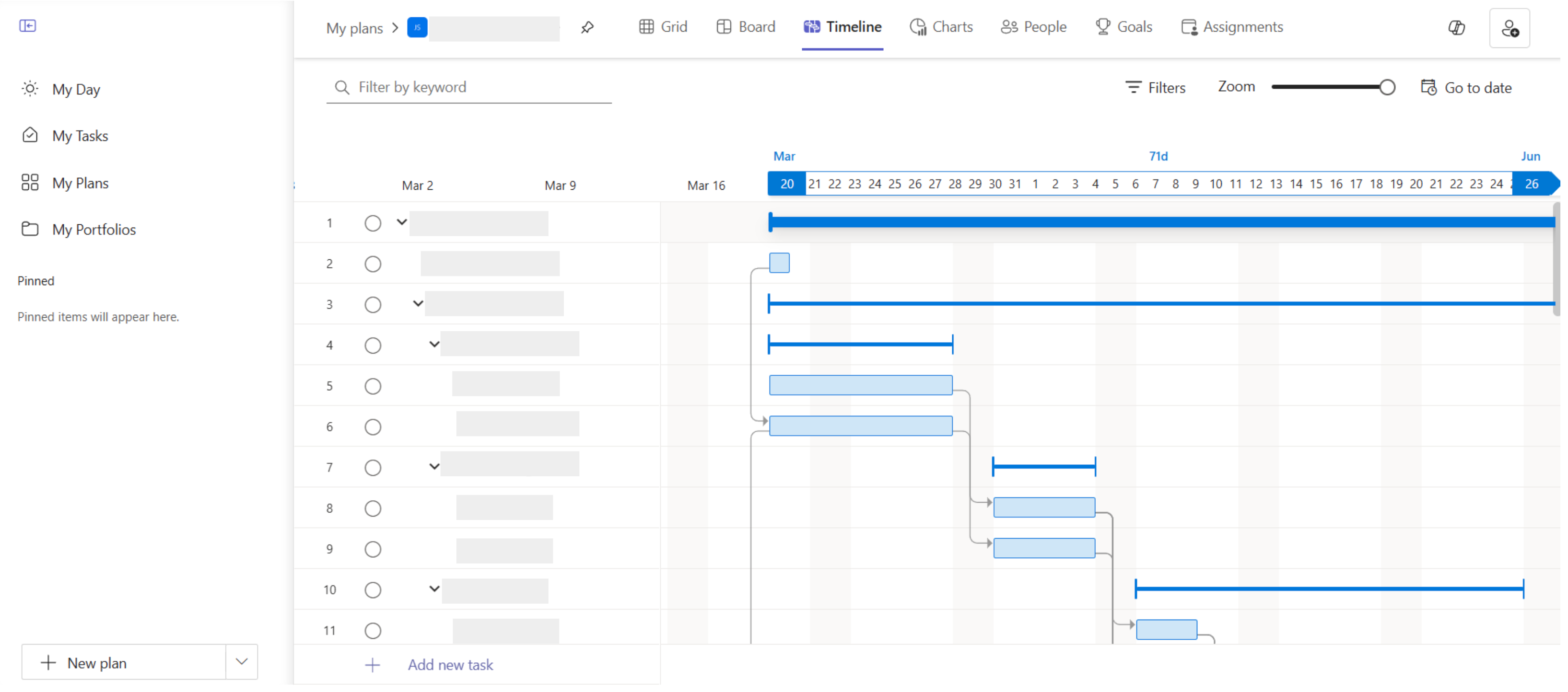
- It shows tasks plotted along a calendar timeline based on their start and end dates.
- This view helps teams track dependencies.
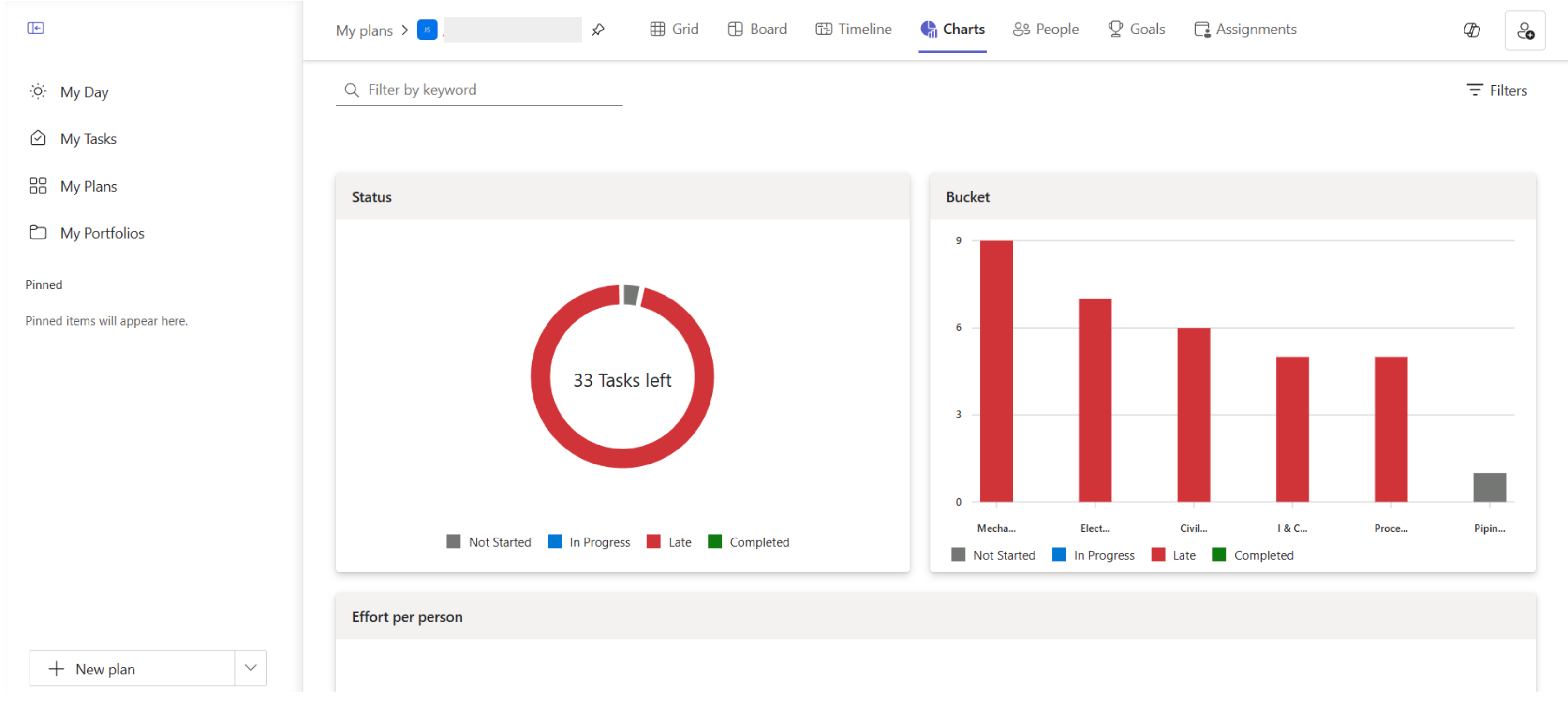
4. Chart view
- It displays task distribution by status and graphs.
5. People view
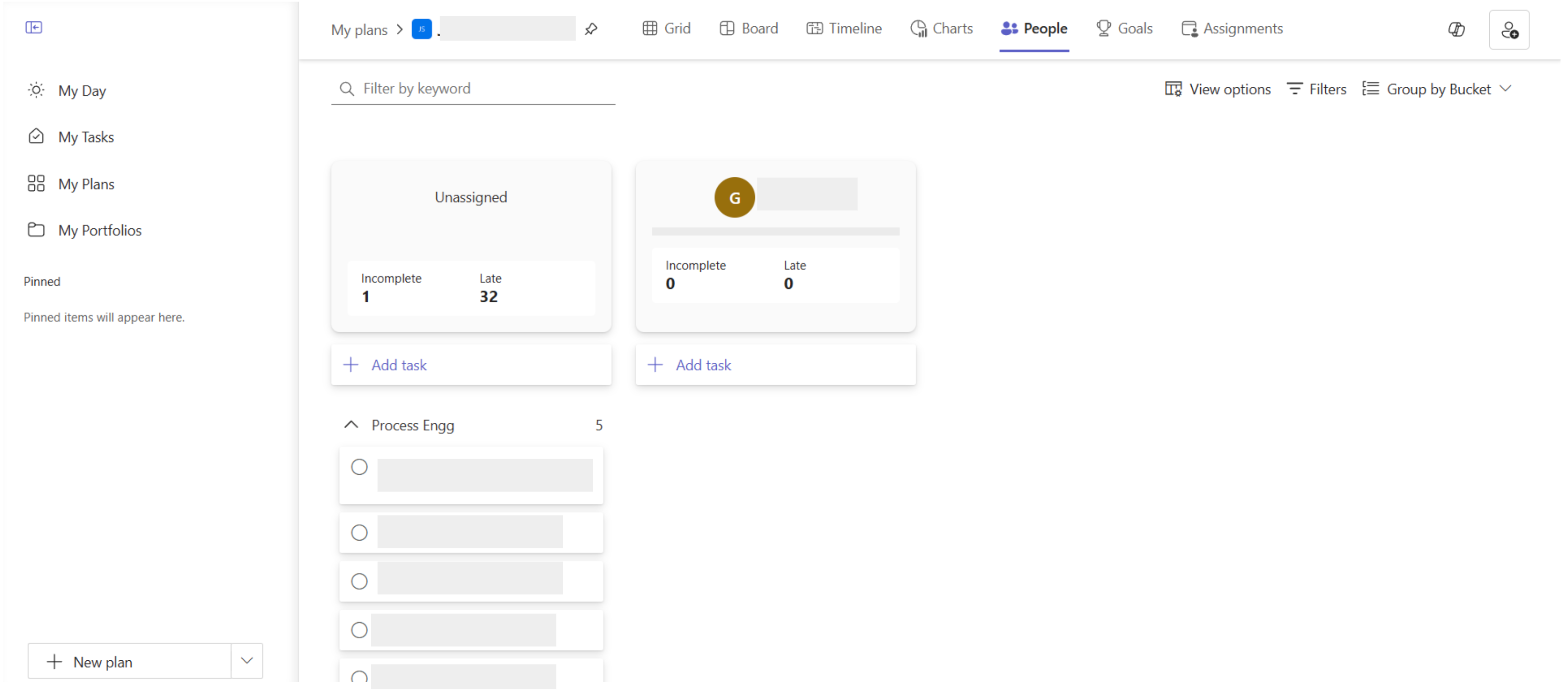
- It lets you see tasks grouped by assignee.
- Each team member appears in their own column with their assigned tasks.
- You can also drag and drop tasks between people to reassign them for balancing workloads.
6. Portfolio View
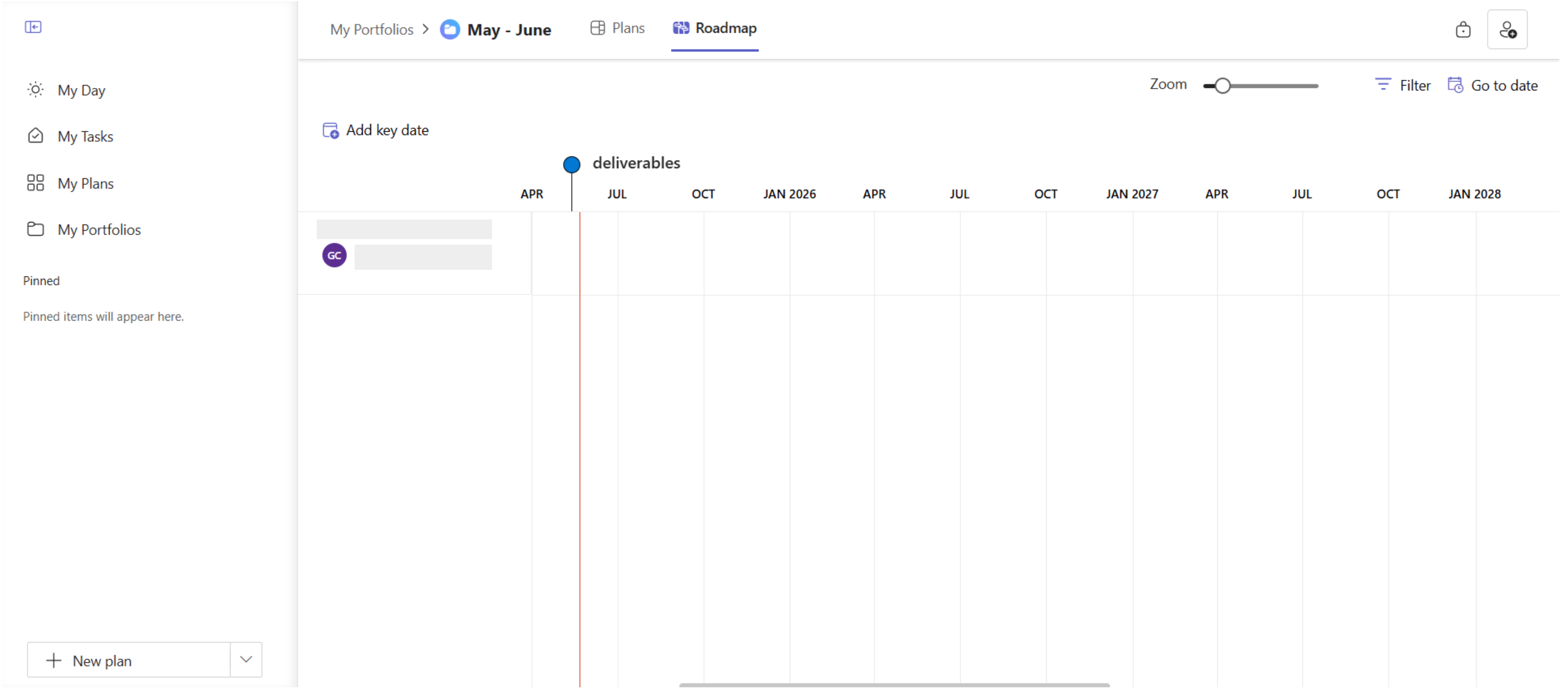
- You can manage and track progress across multiple plans within a single dashboard
- You can include a roadmap view that displays tasks and milestones across all connected plans and helps you to track timelines and dependencies.
Conclusion
Like the man who stopped digging after finding a small piece of gold, it is easy to settle once we have mastered the basics of a tool. Microsoft Planner can certainly work as a simple task list, but its real value appears when you explore further.
When you treat its views as dashboards, integrate it with Microsoft 365 apps, and use it to coordinate across multiple projects, Planner becomes more than a to-do manager. It turns into a central control centre for your team’s work, one that gives clarity, alignment, and momentum.
The greater treasure is not in owning the tool, but in learning how to make it work for you in its fullest capacity. Keep digging. The best of Planner is just beyond the basics.
Ready to see what Microsoft Planner can really do for your team? If you want guidance in setting up Planner for maximum impact, our team at Coffee can help you design a workflow that fits your projects and your people.