Read with Claude
 Read with ChatGPT
A purchasing team needs to know how much steel to order for the coming weeks. The ERP has the inventory figures, but someone still opens an Excel file to calculate the quantities, account for scrap and decide what needs to be ordered.
The file has been around for years. It has formulas that nobody wants to disturb, a few macros that save time, and rules that were added whenever the process needed something new. Purchasing uses the output to place orders, production uses it to plan work, and quality adds information when materials fail inspection.
The spreadsheet has become part of how the factory operates, even though it was never designed to carry that responsibility.
Why that's a problem
The spreadsheet works because someone understands the rules behind it. But as more people depend on the file, every change carries more weight. A formula gets modified, a new supplier falls outside a lookup range, or a number gets overwritten. The error may go unnoticed until a PO is wrong or production is waiting for material.
When the team cannot explain how a number was calculated or why a decision was made, even a small discrepancy takes time to resolve. The spreadsheet has become part of the factory's daily operations, but the responsibility for keeping it running has never caught up.
The six-step playbook
This doesn't need a big IT project. With today's AI tools, a small team can get through the first four steps in a few days.
1. Look at what the file really does
Go through every sheet, formula and macro. For each one, write down which decision it helps someone make. Usually only a handful of formulas do the real work. The rest is formatting, copied data and old workarounds.
You come out of this step with a short list of the parts that actually matter.
2. Watch how it's used for a week
Note who adds data, who changes it and who reads the results. A typical week might look like this:
- Monday: purchasing pastes in data from the ERP
- Thursday: quality updates the reject numbers
- Every morning: production checks the results
That's how the work really happens. It's often quite different from the written process.
3. Ask AI to explain the formulas
Copy the key formulas and a few rows of sample data into an AI assistant. Ask it to explain each one in plain words. Hidden rules show up fast, things like:
- a 7% scrap allowance typed straight into a formula (=B4*1.07)
- a lookup that quietly ignores everything after row 400
- a rounding rule nobody remembers adding
Each of those is a business rule. Right now it's buried in a cell.
Try it: a prompt you can copy
Paste this into any AI assistant, then paste your formulas and a few rows of data under it.
I'm sharing formulas from an Excel file our purchasing team uses to plan raw material orders. For each formula:

1. Explain in plain English what it calculates.
2. List any fixed numbers typed into the formula and what they seem to mean.
3. Point out anything that could break, like ranges that stop early or missing data.
4. Write the business rule behind it as one sentence a non-technical manager would understand.

Here are the formulas and some sample data:
Sample input, part 1: the formulas.
Cell,Formula
D2,=B2*C2*1.07
E2,"=ROUNDUP(D2/F2,0)*F2"
G2,"=VLOOKUP(A2,Suppliers!A2:D400,3,FALSE)"
H2,"=IF(G2>14,""Order now"",""OK"")"
Sample input, part 2: two rows of data.
Part,Weekly use (kg),Weeks to cover,Raw qty (kg),Order qty (kg),Pack size (kg),Lead time (days),Status
SS-304 sheet 2mm,120,3,385.2,400,50,21,Order now
MS rod 12mm,80,2,171.2,175,25,7,OK
What the AI gives back looks something like this:
- D2, raw quantity. Weekly use times weeks to cover, plus 7%. The 1.07 is typed in by hand and is probably a scrap allowance. Rule: order enough for the cover period plus 7% for scrap.
- E2, order quantity. Rounds the raw quantity up to the next full pack. Rule: always order whole packs.
- G2, lead time. Looks up the supplier's lead time on the Suppliers sheet. Risk: the range stops at row 400, so any supplier added below that row returns an error.
- H2, status. Flags any part with a lead time over 14 days. The 14 is typed in by hand. Rule: anything that takes more than two weeks to arrive gets ordered now.
Those four rules are the whole job the spreadsheet does. They become the plan in step 4.
4. Write it down as a simple plan
Turn the AI's explanation into a one-page plan. It covers four things: what goes in, what it calculates, what comes out and who signs off.
Then sit down with the person who built the file and check it together. That hour is the most valuable part of the whole project, because it gets the know-how out of one person's head and onto paper.
5. Build the app
With a clear plan, AI coding tools can build most of a first version in days. It's usually a simple form that saves data in one place.
The app keeps the same calculations as the Excel file. It adds what the file never had: logins, a record of every change, checks that catch wrong entries and a link to the ERP so nobody copies and pastes anymore.
Try it: a build prompt
Give this to an AI coding tool along with your plan from step 4.
Build a simple web app to replace our raw material ordering spreadsheet.

- Users log in. Planners can edit. Managers can approve.
- A form to add a part: name, weekly use, weeks to cover, pack size and supplier.
- Order quantity = weekly use times weeks to cover times 1.07, rounded up to a full pack.
- Look up supplier lead time from a suppliers table. Mark any part with a lead time over 14 days as "Order now", otherwise "OK".
- Keep a record of every change: who, what and when.
- Show one table of all parts with order quantity, lead time and status.
Here's roughly what the first version looks like, using the same two parts from step 3:
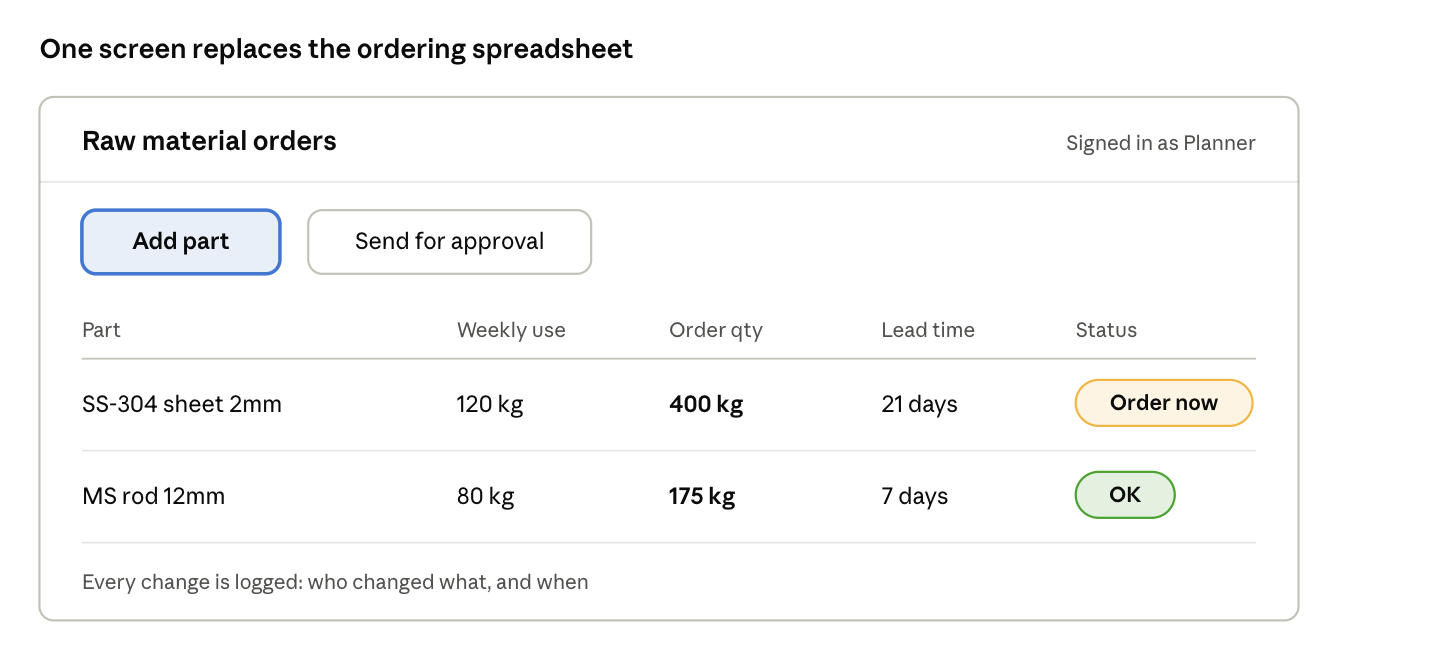
Same numbers as the spreadsheet: 400 kg and 175 kg. The difference is that now everyone works on one screen, the rules can't be typed over and every change has a name on it.
6. Test both, then switch
Use the app and the Excel file side by side for one full cycle, such as a month of planning. Compare the results. When both give the same numbers, retire the file.
The person who built it now reviews the app instead of babysitting it. The work no longer depends on one person being in the office.
When to get help
Your team can build some of these apps on its own in a week. Others are harder. They need to connect to your ERP, read data from drawings or inspection records, or run on your own servers because the data can't leave the building.
That's the work we do at Coffee. We build custom AI tools for engineering and manufacturing teams. Our platform, ADEOS, pulls data out of documents and drawings and runs on your own servers. A lot of what ends up in these spreadsheets started life in exactly those documents.
Where would you start?
Most plants have more than one of these files. Pick the one that would hurt most if it broke tomorrow, and start there.
Which spreadsheet would you move first? Tell us in the comments, or reach us at coffee@coffeeinc.in.