Read with Claude
 Read with ChatGPT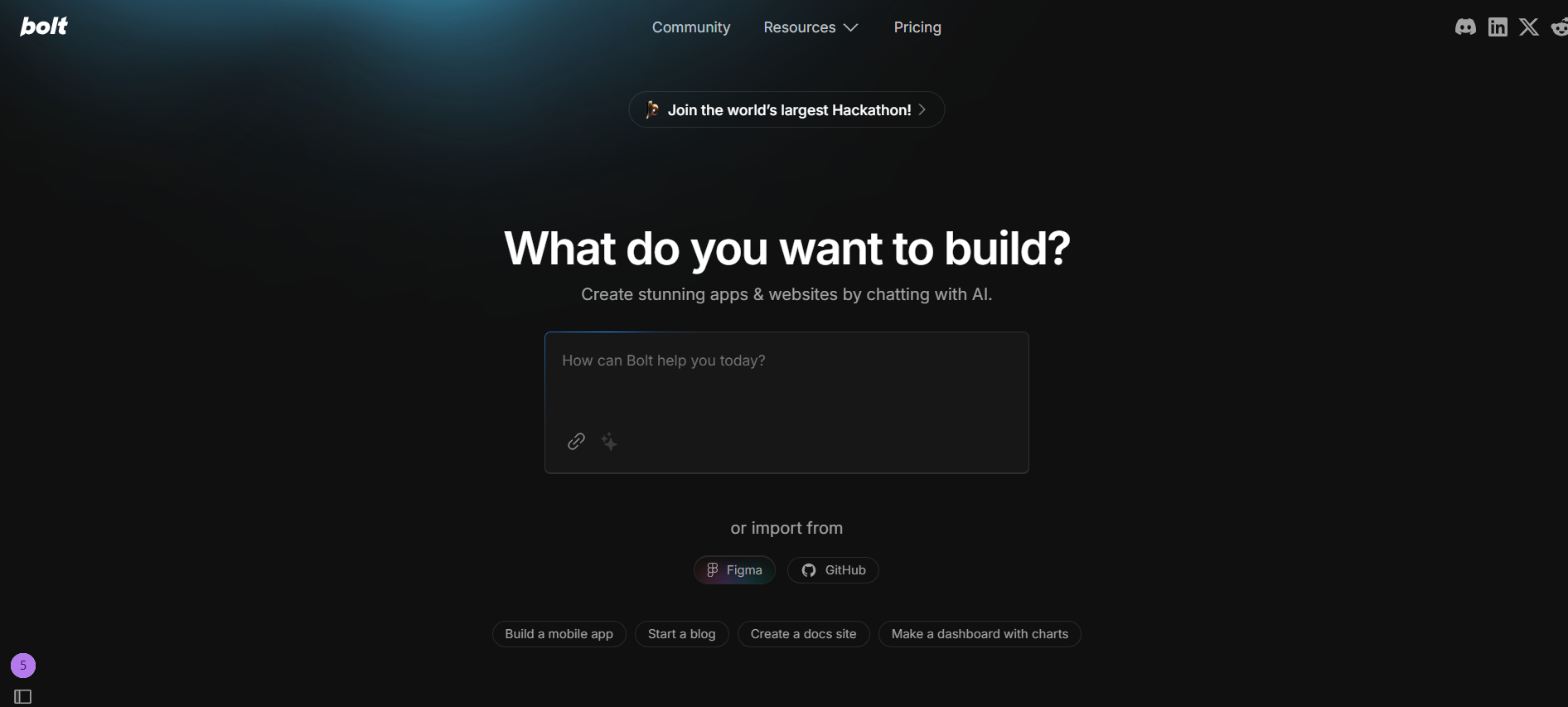
When I first came across Bolt, I was genuinely surprised by how simple it made everything feel. As someone with little to no background in coding, I always thought building websites would be complicated and overwhelming. But Bolt completely changed that.
I could build websites just by giving simple prompts. It felt like having a helper do the hard parts for me. Pages, buttons, and layouts. I made them without getting stuck. It was easy cause all that is needed is a good prompt.
To create websites without having to code , Bolt is a great place to start.
What is bolt.new?
Bolt is a no-code/low-code platform that uses AI to help you build websites or apps. Like I said before, coding is not necessary. You just tell the AI what you want, like “change the theme to pastel colors,” and it will do it for you. And the best thing is: it shows the output right beside it immediately.
Bolt also lets you write and run real code like C or Python right inside the website. So you don’t need to download any apps like Dev-Cpp or anything else. It does all the work in one place on the website itself.
How to use bolt.new?
First, open a browser and type bolt.new. The website will load right away, and the starting screen will appear as soon as it opens. It’s displayed below.
There is this dialogue box where it asks, “How can Bolt help you today?” You just have to type what kind of website you want to create, and it will create it for you. It’s pretty easy how you work with this application. I create a mindful journal website, which is halfway through the process.
I started by typing a simple prompt: “I want a journal website.” Just like that, the platform created a basic site for me. It worked fine, but the design felt really plain and a bit boring.
So, I tried another prompt asking it to change the theme right inside the website. That actually made a big difference the look and feel instantly improved.
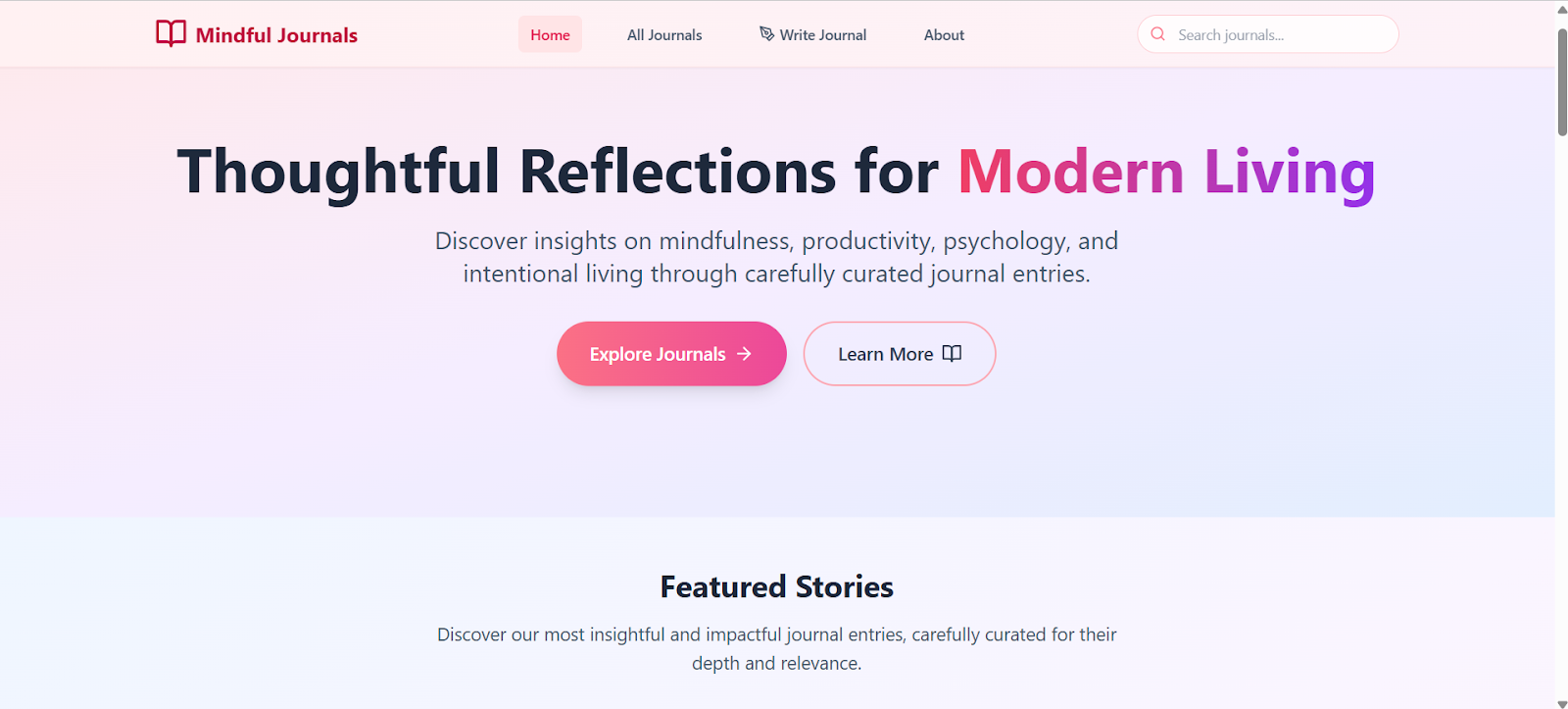
This was the first version I got after entering my initial prompt.
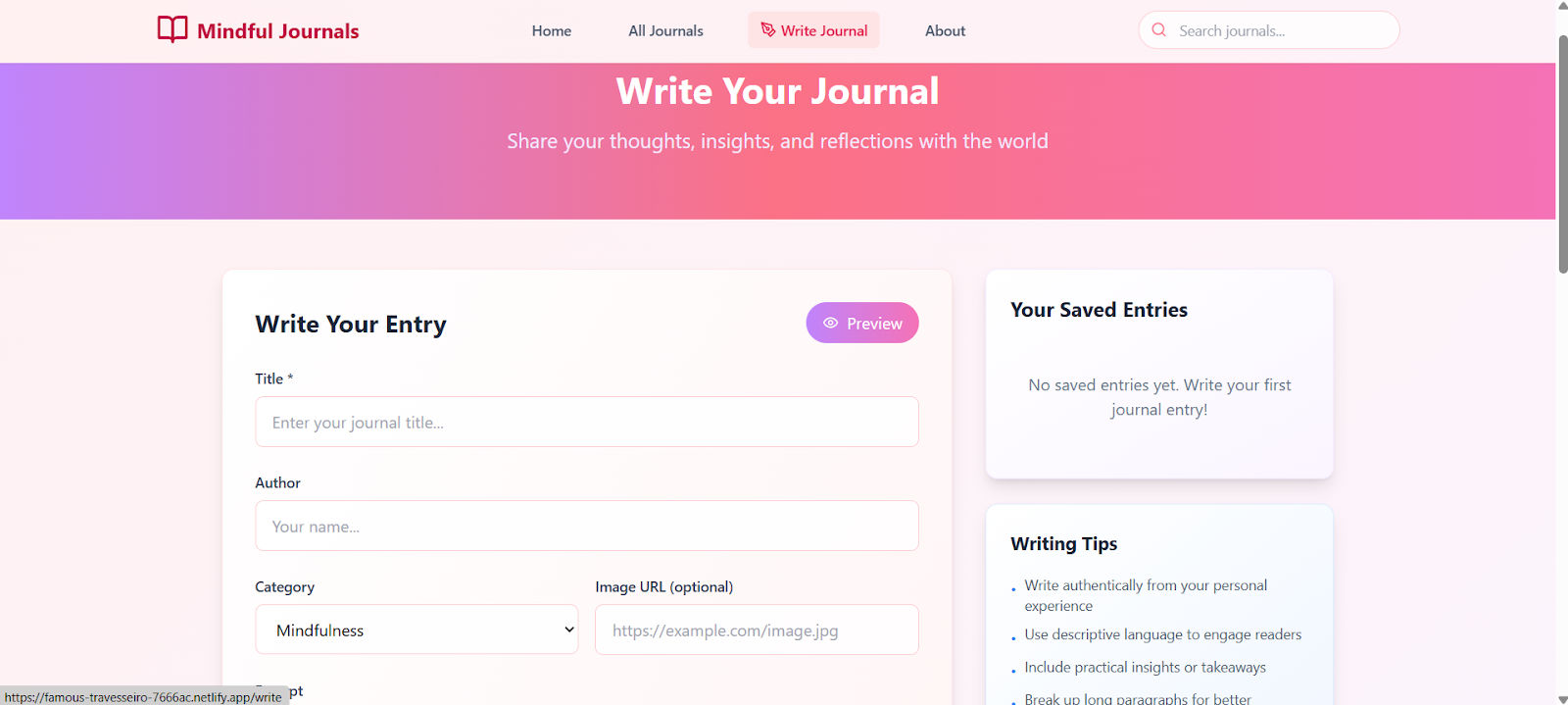
What’s cool about Bolt is how easy it is to make changes just type in a short, clear prompt, and it updates the website for you right away.
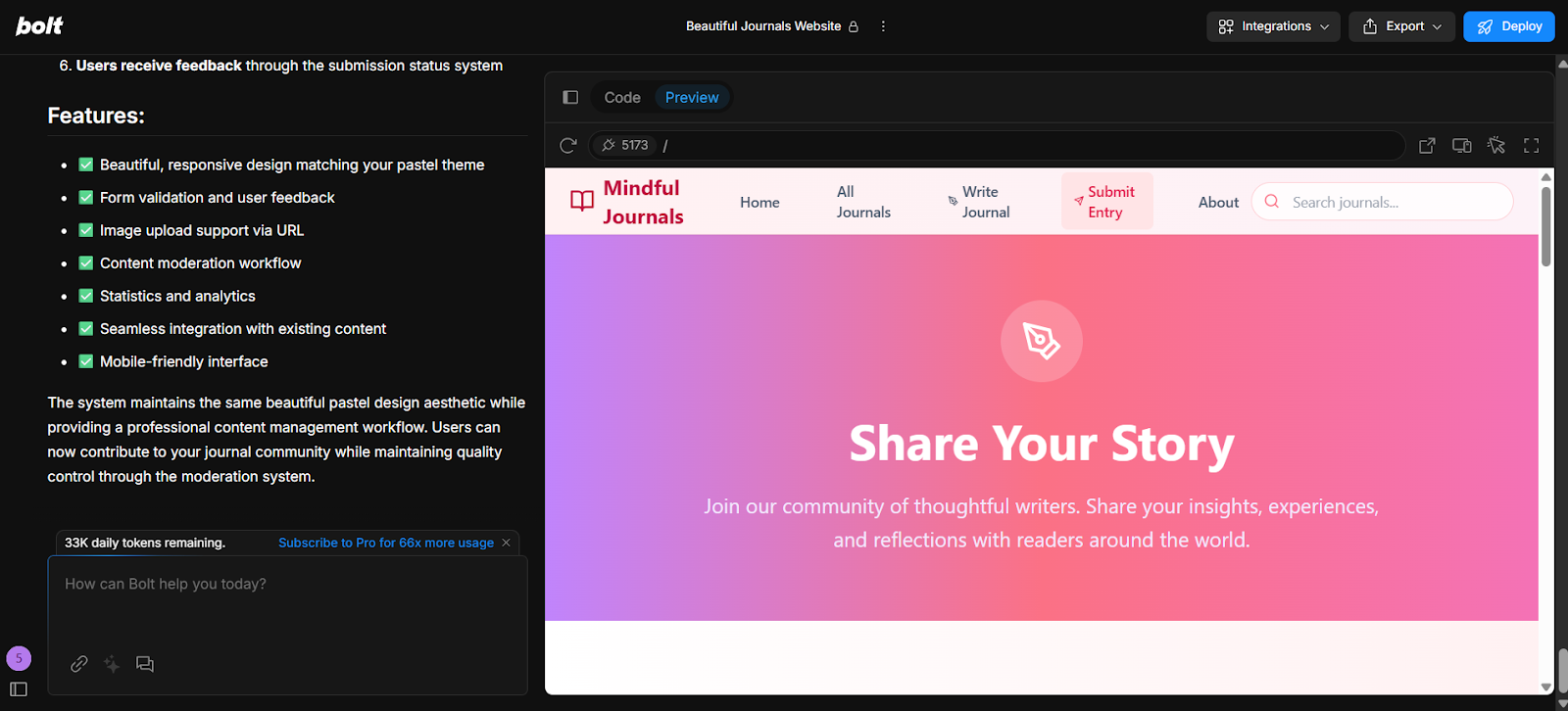
On the left side of the screen, there’s this little box where you just type in what you want to change on your site. And when you’re done and everything looks good, you just click “Deploy” up in the top right.
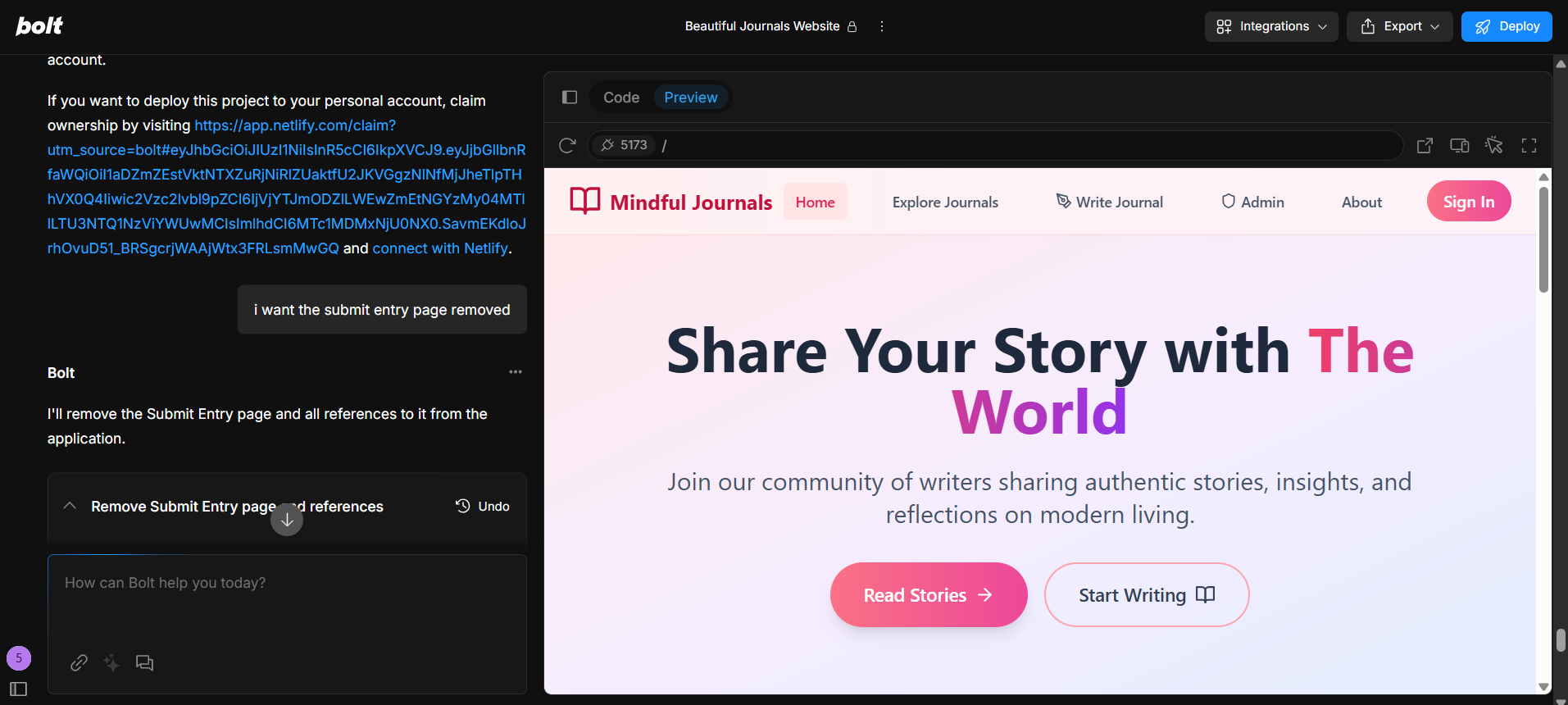
I give a prompt like “Remove the submit entry section,” Bolt will instantly update the website based on that instruction. On the left side, you type your prompt, and on the right side, you’ll see a live preview showing the changes in real time.
Challenges with bolt.new
Even though Bolt is super cool and fun to use, there were a few things that made me feel a little annoyed or stuck.
- Each prompt took a long time to work. After I typed a command, it sometimes took a really long time for the AI to show the result. I just had to sit there and wait, which wasn’t fun.
- Some changes didn’t save properly. I tried adding or editing the journal entries on the homepage, but it didn’t really go as planned. The entries weren’t saved in the home page
- Fixing problems sometimes entered into a loop. Every time I fixed a problem because of my previous updates, a lot of the token got used up.
It got pretty frustrating because I couldn’t finish my journal website the way I had imagined. I hope they fix these things soon; that would make Bolt even better.
Well, a small tip: Keep your prompts short and simple to save tokens. And be clear on the specs. Take it one feature at a time.
Tokens and How it works
Let me explain tokens real quick. When I first used Bolt, I kept seeing the word “tokens,” and I was like, “What even is that?” But it’s actually easy! A token is just a small piece of text, like a word or even a symbol. Every time you ask the AI to do something or when it replies to you, it uses up some tokens.
Bolt gives you a limited number of free tokens every day. That means you can only do a few prompts before it stops for the day. If you use it a lot, the AI won’t work again until the next day unless you upgrade to a paid plan. Upgraded plans give you more tokens, more prompts, and faster responses.
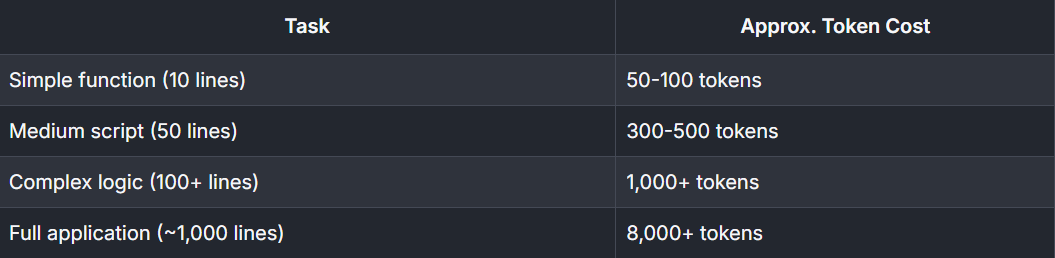
So, if you want to do a big project or don’t like waiting, the paid plans are better. But for small stuff, the free version is a good start. Below mentioned are the calculation for token costing in a range of work in codes.
Final Thoughts
After using Bolt for a while, I can say yes, I totally recommend it. It really changed how I build websites, especially because I don’t know a lot of coding yet. It takes away the scary, complicated parts and makes the process feel simple and approachable. I could go from an idea in my head to a working site just by typing a few clear prompts.
Yes, there were moments where it felt slow or certain changes did not stick, and the token usage meant I had to pace myself. But even with those hiccups, it is still one of the easiest ways I have found to create something without touching code. For small projects or just trying out ideas, the free version is more than enough. If you want to move faster and do more, the paid plan is worth looking at.