Read with Claude
 Read with ChatGPT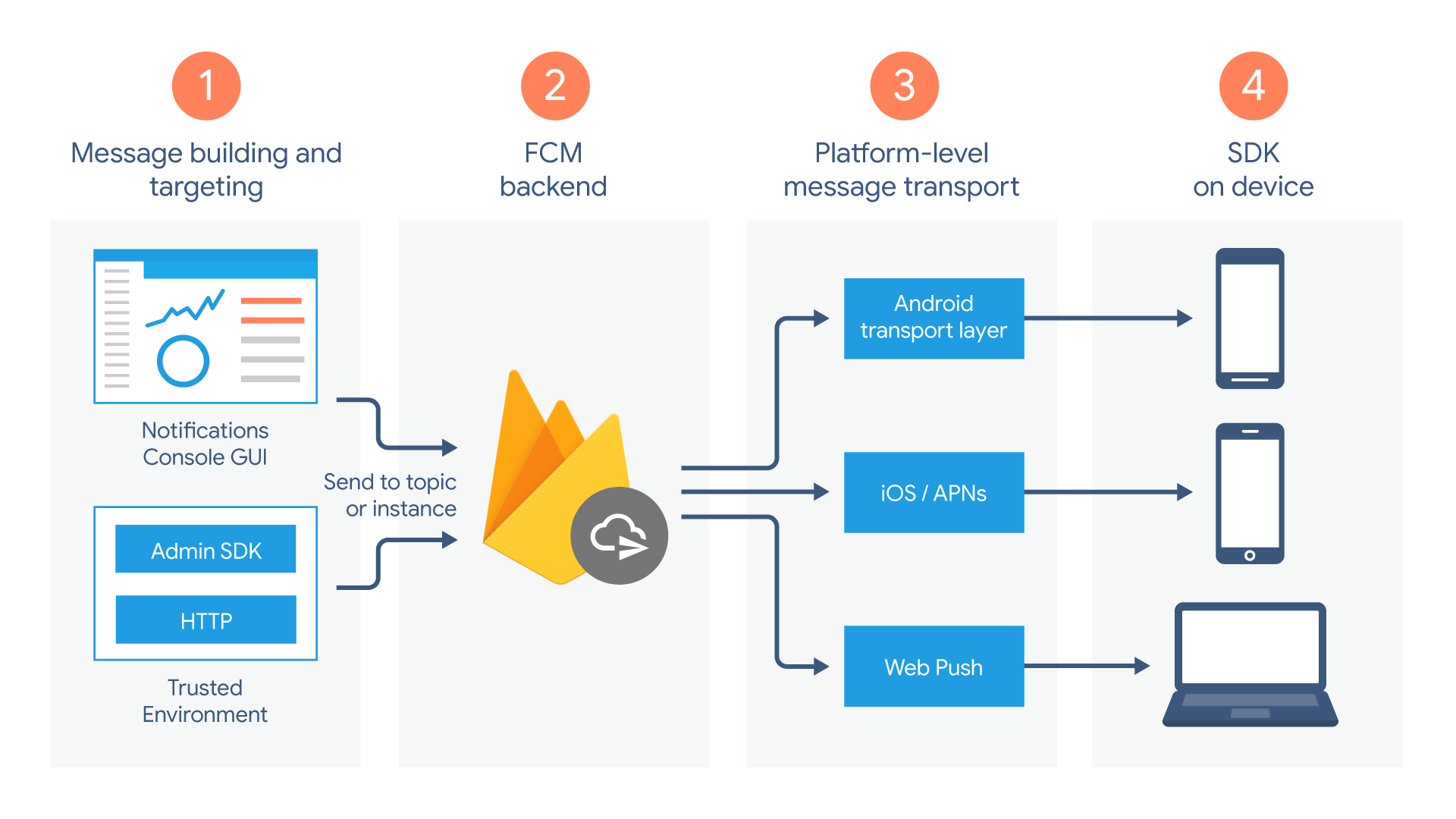
Vibe coding has made it remarkably easy to get applications up and running. Modern AI builders can assemble interfaces, wire databases, and deploy working products in minutes. The tools are powerful, but it often struggles with third party integrations, particularly push notifications.
Among these, Firebase Cloud Messaging is the integration that most frequently breaks when built through purely vibe driven workflows. Reliable push notifications in a PWA requires coordination across the browser, service workers, hosting environment, and backend. When any one of these layers is slightly misconfigured, notifications fail without obvious clues.
It is this very failure loop that I got stuck in before I realized that configuring FCM is better done manually. I have outlined the process of implementing Firebase Cloud Messaging push notifications in your PWA from scratch, including all necessary setup steps and practical debugging techniques.
How It Works
At a high level, push notifications follow a predictable sequence.
- User grants notification permission
- Firebase generates a unique FCM token for the device
- Token is stored on your server for targeting
- Server sends push requests to Firebase
- Firebase delivers notifications to the user’s device
- Service worker handles notification display and user interactions
Where vibe coding commonly fails with Firebase
Recently, when I was building out a web app with Claude Code, I got great results until it came to FCM integration. My conversations with Claude started entering a loop and I realized that part of the reason was the version of docs it was following. There were few other issues I was able to identify:
1. Service worker confusion
Auto generated setups often register multiple service workers or place Firebase logic in the wrong file. Sometimes the dedicated firebase-messaging-sw.js is not served from the root scope, or it gets replaced during a build. The result is predictable: FCM tokens appear to work, yet background notifications never arrive.
2. Misconfig in development and production environments
The local configuration is different from that of production. Common patterns include using the wrong VAPID key, mixing Firebase projects, or forgetting to update service worker credentials after deployment. Notifications may work locally over HTTPS, then break entirely once the app is live.
3. Token generation without durable storage
I also noticed that without a persistent storage, I was able to trigger notifications, but tokens disappear when users switch devices, clear storage, or reinstall the PWA. Worse, sometimes, the token is rarely tied to a user identity, making real notification targeting unreliable.
4. Poor permission flow
Generated interfaces tend to request notification permission immediately on page load. Users often deny it, and the app provides no clear way to recover or explain the value of notifications. This permanently reduces deliverability.
5. iOS blind spots
Most testing I did was in Chrome on Android or desktop. On iOS, notifications require the PWA to be added to the home screen, strict HTTPS configuration, and a correctly structured manifest. This was not clear until I went live.
6. Backend mismatch for real notifications
Manual sending from the Firebase console always worked well. But when trying to get the backend to actually send messages, there are a number of additional steps of config need..
7. Silent failures instead of clear errors
Perhaps the biggest issue is invisibility. Tokens may be null, service workers may not register, or VAPID keys may be wrong, yet nothing clearly surfaces in the UI. This guide explicitly shows how to inspect each layer so failures become visible and fixable.
Prerequisites
Before starting, ensure you have:
- HTTPS Website: Push notifications require secure connections
- Service Worker: Essential for background notification handling
- Web App Manifest: Defines how your PWA appears when installed
- Node.js: For development and build tools
- Firebase Account: For FCM services
- Modern Browser: Chrome, Firefox, Safari, or Edge
Setting up a Project in Firebase Console
Step 1: Create Firebase Project
You begin by creating a Firebase project in the Firebase Console and registering your web application.
**Navigate to Firebase Console
**Go to Firebase Console
Sign in with your Google account
Create New Project
Click “Add project” → Enter project name → Continue
Configure Google Analytics (Optional but recommended)
Choose existing account or create new → Select region → Accept terms
**Project Creation
**Click “Create project” → Wait for setup completion
Step 2: Add Web App to Project
Register Web App (Project Overview → Add app → Web (</>) icon)
App Configuration (App nickname: “Your PWA Name” → Firebase Hosting: ☑️ (optional) → Click “Register app”)
Save Firebase Configuration
// Copy this configuration object
const firebaseConfig = {
  apiKey: "your-api-key",
  authDomain: "your-project.firebaseapp.com",
  projectId: "your-project-id",
  storageBucket: "your-project.appspot.com",
  messagingSenderId: "123456789012",
  appId: "1:123456789012:web:abcdef123456"
};
Step 3: Enable Cloud Messaging
Navigate to Cloud Messaging (Project settings → Cloud Messaging tab)
Generate VAPID Keys (Web configuration → Web Push certificates → Generate key pair)
Important: Save the generated VAPID key — you’ll need it for client-side implementation.
Setting up Service Accounts
If you do need service account setup, here is how to create one:
Step 1: Create Service Account
- Access Service Accounts in the Google Cloud Console: (Project settings → Service accounts tab)
- Generate Private Key: (Firebase Admin SDK → Generate new private key → Generate key)
- Download JSON File: A
serviceAccountKey.jsonfile will be downloaded
Security Warning: Never commit this file to version control!
Step 2: Service Account JSON Structure
Your downloaded file will look like this:
# json
{
  "type": "service_account",
  "project_id": "your-project-id",
  "private_key_id": "key-id",
  "private_key": "-----BEGIN PRIVATE KEY-----\n...\n-----END PRIVATE KEY-----\n",
  "client_email": "firebase-adminsdk-xxxxx@your-project.iam.gserviceaccount.com",
  "client_id": "123456789012345678901",
  "auth_uri": "https://accounts.google.com/o/oauth2/auth",
  "token_uri": "https://oauth2.googleapis.com/token",
  "auth_provider_x509_cert_url": "https://www.googleapis.com/oauth2/v1/certs",
  "client_x509_cert_url": "https://www.googleapis.com/robot/v1/metadata/x509/firebase-adminsdk-xxxxx%40your-project.iam.gserviceaccount.com"
}
Step 3: Secure Storage for Different Environments
For Supabase Edge Functions:
sql
-- Store as encrypted secrets in Supabase
-- Dashboard → Project Settings → Edge Functions → Environment Variables

FIREBASE_SERVICE_ACCOUNT_KEY={"type":"service_account",...}
FIREBASE_PROJECT_ID=your-project-id
For Client-Side API Routes (Next.js):
# Store in environment variables
VERCEL_PUBLIC_FIREBASE_SERVICE_ACCOUNT_KEY='{"type":"service_account",...}'
VERCEL_PUBLIC_FIREBASE_PROJECT_ID=your-project-id

# Add to .gitignore
serviceAccountKey.json
.env.local
For Serverless Functions (Vercel, Netlify):
# Store as environment variables in deployment platform
FIREBASE_SERVICE_ACCOUNT_KEY={"type":"service_account",...}
FIREBASE_PROJECT_ID=your-project-id
Step 4: Integration Examples
Supabase Edge Function Example:
// supabase/functions/send-notification/index.ts
import { serve } from "https://deno.land/std@0.168.0/http/server.ts"
import { initializeApp, cert } from "https://deno.land/x/firebase_admin@v1.0.0/mod.ts"

const firebaseConfig = {
  credential: cert(JSON.parse(Deno.env.get('FIREBASE_SERVICE_ACCOUNT_KEY')!)),
  projectId: Deno.env.get('FIREBASE_PROJECT_ID')
}
const app = initializeApp(firebaseConfig)
serve(async (req) => {
  const { userToken, title, body, data } = await req.json()

  try {
    const message = {
      token: userToken,
      notification: { title, body },
      data: data || {}
    }

    const response = await app.messaging().send(message)
    return new Response(JSON.stringify({ success: true, messageId: response }))
  } catch (error) {
    return new Response(JSON.stringify({ error: error.message }), { status: 500 })
  }
})
Server-Side API Route Example (Next.js):
// pages/api/send-notification.js
import admin from 'firebase-admin'

if (!admin.apps.length) {
  admin.initializeApp({
    credential: admin.credential.cert(JSON.parse(process.env.FIREBASE_SERVICE_ACCOUNT_KEY)),
    projectId: process.env.FIREBASE_PROJECT_ID
  })
}
export default async function handler(req, res) {
  if (req.method !== 'POST') {
    return res.status(405).json({ error: 'Method not allowed' })
  }

  const { token, title, body, data } = req.body

  try {
    const message = {
      token,
      notification: { title, body },
      data: data || {},
      webpush: {
        fcmOptions: {
          link: data?.url || '/'
        }
      }
    }

    const response = await admin.messaging().send(message)
    res.status(200).json({ success: true, messageId: response })
  } catch (error) {
    res.status(500).json({ error: error.message })
  }
}
Environment Setup
Step 1: Install Dependencies
# For React/Vite PWA
npm install firebase vite-plugin-pwa workbox-window

# For vanilla JavaScript
npm install firebase
Step 2: Environment Variables
Create .env file:
# Client-side Firebase config
VITE_FIREBASE_API_KEY=your-api-key
VITE_FIREBASE_AUTH_DOMAIN=your-project.firebaseapp.com
VITE_FIREBASE_PROJECT_ID=your-project-id
VITE_FIREBASE_STORAGE_BUCKET=your-project.appspot.com
VITE_FIREBASE_MESSAGING_SENDER_ID=123456789012
VITE_FIREBASE_APP_ID=1:123456789012:web:abcdef123456
VITE_WEBPUSH_NOTIFICATION_KEY=your-vapid-key
Implementation Steps
Step 1: Firebase Configuration
Create src/firebase/config.js:
import { initializeApp } from 'firebase/app';
import { getMessaging, getToken, onMessage } from 'firebase/messaging';

const firebaseConfig = {
  apiKey: import.meta.env.VITE_FIREBASE_API_KEY,
  authDomain: import.meta.env.VITE_FIREBASE_AUTH_DOMAIN,
  projectId: import.meta.env.VITE_FIREBASE_PROJECT_ID,
  storageBucket: import.meta.env.VITE_FIREBASE_STORAGE_BUCKET,
  messagingSenderId: import.meta.env.VITE_FIREBASE_MESSAGING_SENDER_ID,
  appId: import.meta.env.VITE_FIREBASE_APP_ID
};
// Initialize Firebase
const app = initializeApp(firebaseConfig);
// Initialize Firebase Cloud Messaging
const messaging = getMessaging(app);
export { messaging, getToken, onMessage };
Step 2: Service Worker Setup
Create public/firebase-messaging-sw.js:
// Import Firebase scripts
importScripts('https://www.gstatic.com/firebasejs/9.0.0/firebase-app-compat.js');
importScripts('https://www.gstatic.com/firebasejs/9.0.0/firebase-messaging-compat.js');

// Initialize Firebase in service worker
firebase.initializeApp({
  apiKey: "your-api-key",
  authDomain: "your-project.firebaseapp.com",
  projectId: "your-project-id",
  storageBucket: "your-project.appspot.com",
  messagingSenderId: "123456789012",
  appId: "1:123456789012:web:abcdef123456"
});
const messaging = firebase.messaging();
// Handle background messages
messaging.onBackgroundMessage((payload) => {
  console.log('Received background message:', payload);

  const notificationTitle = payload.notification.title;
  const notificationOptions = {
    body: payload.notification.body,
    icon: '/icon-192x192.png',
    badge: '/badge-72x72.png',
    tag: 'notification-tag',
    data: payload.data,
    actions: [
      {
        action: 'open',
        title: 'Open App'
      },
      {
        action: 'close',
        title: 'Close'
      }
    ]
  };
  self.registration.showNotification(notificationTitle, notificationOptions);
});
// Handle notification clicks
self.addEventListener('notificationclick', (event) => {
  console.log('Notification clicked:', event);

  event.notification.close();

  if (event.action === 'close') {
    return;
  }

  // Navigate to app
  event.waitUntil(
    clients.matchAll({ type: 'window' }).then((clientList) => {
      for (const client of clientList) {
        if (client.url === '/' && 'focus' in client) {
          return client.focus();
        }
      }
      if (clients.openWindow) {
        return clients.openWindow('/');
      }
    })
  );
});
Step 3: Notification Permission Handler
Create src/utils/notificationPermission.js:
import { messaging, getToken } from '../firebase/config';

const VAPID_KEY = import.meta.env.VITE_WEBPUSH_NOTIFICATION_KEY;
export function isNotificationSupported() {
  return 'Notification' in window && 'serviceWorker' in navigator;
}
export async function requestNotificationPermission() {
  if (!isNotificationSupported()) {
    throw new Error('Notifications not supported');
  }
  const permission = await Notification.requestPermission();

  if (permission === 'granted') {
    // Register service worker first
    const registration = await navigator.serviceWorker.register('/firebase-messaging-sw.js');

    // Get FCM token
    const token = await getToken(messaging, {
      vapidKey: VAPID_KEY,
      serviceWorkerRegistration: registration
    });

    console.log('FCM Token:', token);

    // Send token to your server
    await sendTokenToServer(token);

    return token;
  } else {
    throw new Error(`Permission denied: ${permission}`);
  }
}
async function sendTokenToServer(token) {
  try {
    await fetch('/api/fcm-token', {
      method: 'POST',
      headers: {
        'Content-Type': 'application/json',
      },
      body: JSON.stringify({ token, userId: getCurrentUserId() })
    });
  } catch (error) {
    console.error('Failed to send token to server:', error);
  }
}
function getCurrentUserId() {
  // Return current user ID from your auth system
  return 'user-123';
}
Step 4: FCM Token Service
Create src/services/FCMTokenService.js:
import { messaging, getToken, onMessage } from '../firebase/config';
import { requestNotificationPermission } from '../utils/notificationPermission';

export class FCMTokenService {
  static async registerFCMToken() {
    try {
      if (Notification.permission === 'granted') {
        const token = await getToken(messaging, {
          vapidKey: import.meta.env.VITE_WEBPUSH_NOTIFICATION_KEY
        });

        if (token) {
          await this.saveTokenToDatabase(token);
          return true;
        }
      }
      return false;
    } catch (error) {
      console.error('FCM token registration failed:', error);
      return false;
    }
  }
  static async saveTokenToDatabase(token) {
    // Store token in your preferred storage solution
    // Example with localStorage
    localStorage.setItem('fcmToken', token);
    localStorage.setItem('fcmTokenTimestamp', Date.now().toString());

    // Or integrate with your database/API
    console.log('FCM token saved:', token);
  }
  static setupForegroundNotifications() {
    onMessage(messaging, (payload) => {
      console.log('Foreground message received:', payload);

      // Display notification manually for foreground messages
      if (Notification.permission === 'granted') {
        new Notification(payload.notification.title, {
          body: payload.notification.body,
          icon: payload.notification.icon || '/icon-192x192.png',
          data: payload.data
        });
      }
    });
  }
  static async clearToken() {
    try {
      // Clear token from local storage
      localStorage.removeItem('fcmToken');
      localStorage.removeItem('fcmTokenTimestamp');
      console.log('FCM token cleared');
    } catch (error) {
      console.error('Failed to clear FCM token:', error);
    }
  }
}
function getAuthToken() {
  // Return your auth token if using authentication
  // For demo purposes, return a placeholder
  return 'demo-auth-token';
}
Step 5: React Component Integration
Create src/components/NotificationPermissionDialog.jsx:
import React, { useState, useEffect } from 'react';
import { FCMTokenService } from '../services/FCMTokenService';
import { requestNotificationPermission, isNotificationSupported } from '../utils/notificationPermission';

export function NotificationPermissionDialog() {
  const [permissionState, setPermissionState] = useState(Notification.permission);
  const [showDialog, setShowDialog] = useState(false);
  useEffect(() => {
    // Show dialog if notifications are supported but not granted
    if (isNotificationSupported() && Notification.permission === 'default') {
      const timer = setTimeout(() => setShowDialog(true), 2000);
      return () => clearTimeout(timer);
    }

    // Set up foreground notifications if already granted
    if (Notification.permission === 'granted') {
      FCMTokenService.setupForegroundNotifications();
      FCMTokenService.registerFCMToken();
    }
  }, []);
  const handleEnableNotifications = async () => {
    try {
      await requestNotificationPermission();
      setPermissionState('granted');
      setShowDialog(false);

      // Set up notifications
      FCMTokenService.setupForegroundNotifications();
    } catch (error) {
      console.error('Failed to enable notifications:', error);
      setPermissionState('denied');
    }
  };
  const handleDismiss = () => {
    setShowDialog(false);
  };
  if (!showDialog || !isNotificationSupported()) {
    return null;
  }
  return (
    <div className="notification-dialog">
      <div className="dialog-content">
        <h3>Enable Notifications</h3>
        <p>
          Get notified about important updates and messages.
          You can change this setting anytime.
        </p>
        <div className="dialog-actions">
          <button onClick={handleDismiss} className="btn-secondary">
            Not Now
          </button>
          <button onClick={handleEnableNotifications} className="btn-primary">
            Enable
          </button>
        </div>
      </div>
    </div>
  );
}
Step 6: Supabase Database Integration
Since you’re using Supabase, here’s how to integrate push notifications with your database:
Database Schema for FCM Tokens:
-- Create table for storing FCM tokens
CREATE TABLE user_fcm_tokens (
  id UUID DEFAULT gen_random_uuid() PRIMARY KEY,
  user_id UUID REFERENCES auth.users(id) ON DELETE CASCADE,
  fcm_token TEXT NOT NULL,
  device_info JSONB DEFAULT '{}',
  created_at TIMESTAMP WITH TIME ZONE DEFAULT NOW(),
  updated_at TIMESTAMP WITH TIME ZONE DEFAULT NOW(),
  UNIQUE(user_id, fcm_token)
);

-- Enable RLS
ALTER TABLE user_fcm_tokens ENABLE ROW LEVEL SECURITY;
-- Policy for users to manage their own tokens
CREATE POLICY "Users can manage their own FCM tokens" ON user_fcm_tokens
  FOR ALL USING (auth.uid() = user_id);
Updated FCM Token Service for Supabase:
import { createClient } from '@supabase/supabase-js'

const supabase = createClient(
  import.meta.env.VITE_SUPABASE_URL,
  import.meta.env.VITE_SUPABASE_ANON_KEY
)
export class FCMTokenService {
  static async registerFCMToken() {
    try {
      const { data: { user } } = await supabase.auth.getUser()
      if (!user) throw new Error('User not authenticated')
      if (Notification.permission === 'granted') {
        const token = await getToken(messaging, {
          vapidKey: import.meta.env.VITE_WEBPUSH_NOTIFICATION_KEY
        });

        if (token) {
          await this.saveTokenToSupabase(user.id, token)
          return true
        }
      }
      return false
    } catch (error) {
      console.error('FCM token registration failed:', error)
      return false
    }
  }
  static async saveTokenToSupabase(userId, token) {
    try {
      const deviceInfo = {
        userAgent: navigator.userAgent,
        platform: navigator.platform,
        timestamp: new Date().toISOString()
      }
      const { error } = await supabase
        .from('user_fcm_tokens')
        .upsert({
          user_id: userId,
          fcm_token: token,
          device_info: deviceInfo,
          updated_at: new Date().toISOString()
        }, {
          onConflict: 'user_id,fcm_token'
        })
      if (error) throw error
      console.log('FCM token saved to Supabase')
    } catch (error) {
      console.error('Failed to save FCM token to Supabase:', error)
      throw error
    }
  }
  static async clearUserTokens() {
    try {
      const { data: { user } } = await supabase.auth.getUser()
      if (!user) return
      const { error } = await supabase
        .from('user_fcm_tokens')
        .delete()
        .eq('user_id', user.id)
      if (error) throw error
      console.log('FCM tokens cleared from Supabase')
    } catch (error) {
      console.error('Failed to clear FCM tokens:', error)
    }
  }
  static setupForegroundNotifications() {
    onMessage(messaging, (payload) => {
      console.log('Foreground message received:', payload)

      if (Notification.permission === 'granted') {
        new Notification(payload.notification.title, {
          body: payload.notification.body,
          icon: payload.notification.icon || '/icon-192x192.png',
          data: payload.data
        })
      }
    })
  }
}
Platform-Specific Configuration
iOS PWA Setup
Requirements for iOS notifications:
- Add to Home Screen: Users must add your PWA to their home screen
- HTTPS: Mandatory for all PWA features
- Web App Manifest: Must include proper configuration
Update your manifest.json:
{
  "name": "Your PWA Name",
  "short_name": "PWA",
  "display": "standalone",
  "start_url": "/",
  "theme_color": "#000000",
  "background_color": "#ffffff",
  "icons": [
    {
      "src": "/icon-192x192.png",
      "sizes": "192x192",
      "type": "image/png",
      "purpose": "any maskable"
    },
    {
      "src": "/icon-512x512.png",
      "sizes": "512x512",
      "type": "image/png",
      "purpose": "any maskable"
    }
  ]
}
Apple-specific meta tags in index.html:
<meta name="apple-mobile-web-app-capable" content="yes">
<meta name="apple-mobile-web-app-status-bar-style" content="default">
<meta name="apple-mobile-web-app-title" content="Your PWA">
<link rel="apple-touch-icon" href="/apple-touch-icon.png">
Android PWA Setup
Enhanced features for Android:
- Notification Channels: Better organization
- Rich Notifications: Custom actions and layouts
- Background Sync: Offline capability
Update service worker for Android features:
// In firebase-messaging-sw.js
messaging.onBackgroundMessage((payload) => {
  const notificationOptions = {
    body: payload.notification.body,
    icon: '/icon-192x192.png',
    badge: '/badge-72x72.png',
    tag: 'android-notification',
    requireInteraction: true, // Keep notification visible
    actions: [
      {
        action: 'view',
        title: 'View',
        icon: '/action-view.png'
      },
      {
        action: 'dismiss',
        title: 'Dismiss',
        icon: '/action-dismiss.png'
      }
    ],
    data: {
      url: payload.data?.url || '/',
      timestamp: Date.now()
    }
  };

self.registration.showNotification(
    payload.notification.title,
    notificationOptions
  );
});
Development Testing
1. Local HTTPS Setup:
# Using Vite with HTTPS
npm run dev -- --https

# Or use mkcert for local certificates
npm install -g mkcert
mkcert -install
mkcert localhost
2. Test Notification Flow
// Test component
function TestNotificationButton() {
  const testNotification = async () => {
    if (Notification.permission === 'granted') {
      new Notification('Test Notification', {
        body: 'This is a test notification',
        icon: '/icon-192x192.png'
      });
    }
  };

  return (
    <button onClick={testNotification}>
      Test Notification
    </button>
  );
}
3. Get FCM Token for Testing
// Add this to your app to copy token for Firebase Console testing
function FCMTokenDisplay() {
  const [token, setToken] = useState('');

  useEffect(() => {
    const getToken = async () => {
      if (Notification.permission === 'granted') {
        const fcmToken = await getFCMToken();
        setToken(fcmToken);
      }
    };
    getToken();
  }, []);

  const copyToken = () => {
    navigator.clipboard.writeText(token);
    alert('Token copied to clipboard!');
  };

  return (
    <div>
      <p>FCM Token: {token}</p>
      <button onClick={copyToken}>Copy Token</button>
    </div>
  );
}
Testing with Supabase Integration
Test Database-Triggered Notifications
// Component to test Supabase integration
function TestSupabaseNotification() {
  const sendViaSupabase = async () => {
    try {
      // Call your Supabase Edge Function
      const { data, error } = await supabase.functions.invoke('send-notification', {
        body: {
          title: 'Test from Supabase',
          body: 'This notification was sent via Supabase Edge Function',
          data: { source: 'test' }
        }
      });

      if (error) throw error;
      console.log('Notification sent via Supabase:', data);
    } catch (error) {
      console.error('Failed to send notification via Supabase:', error);
    }
  };

return (
    <button onClick={sendViaSupabase}>
      Test Supabase Notification
    </button>
  );
}
Firebase Console Testing
1. Get FCM Token from Database
-- Query to get FCM tokens for testing
SELECT fcm_token, device_info
FROM user_fcm_tokens
WHERE user_id = 'your-user-id';
2. Send Test Message via Firebase Console
Firebase Console → Cloud Messaging → Send your first message
→ Notification title and text
→ Target: Single device (paste FCM token from database)
→ Send
Production Deployment
1. Build and Deploy
npm run build

/* Deploy to your hosting provider
   # For Firebase Hosting: firebase deploy
   # For Netlify: netlify deploy --prod
   # For Vercel: vercel --prod
2. Test on Real Devices
- iOS: Add to home screen, test notifications
- Android: Test in browser and as installed PWA
- Desktop: Test in Chrome, Firefox, Edge
Firebase Console Testing
1. Send Test Message
Firebase Console → Cloud Messaging → Send your first message
2. Target Testing
Single device (FCM token)
User segment
Topic subscribers
Common Issues
1. Notifications Not Appearing
Symptoms: FCM token generated but notifications not received
Solutions:
// Check service worker registration
navigator.serviceWorker.getRegistrations().then(registrations => {
  console.log('Service Workers:', registrations);
});

// Verify notification permission
console.log('Permission:', Notification.permission);
// Check for errors in service worker
navigator.serviceWorker.addEventListener('error', event => {
  console.error('SW Error:', event);
});
2. iOS Notifications Not Working
Symptoms: Works on Android but not iOS
Solutions:
- Ensure PWA is added to home screen
- Check Safari settings for notifications
- Verify HTTPS certificate validity
- Test with Safari Technology Preview
3. Service Worker Not Updating
Symptoms: Old service worker cached
Solutions:
// Force service worker update
if ('serviceWorker' in navigator) {
  navigator.serviceWorker.getRegistrations().then(registrations => {
    registrations.forEach(registration => {
      registration.update();
    });
  });
}
4. FCM Token Not Generated
Symptoms: getToken() returns null
Solutions:
// Debug token generation
import { getToken } from 'firebase/messaging';

async function debugTokenGeneration() {
  try {
    console.log('VAPID Key:', import.meta.env.VITE_WEBPUSH_NOTIFICATION_KEY);
    console.log('Permission:', Notification.permission);

    const registration = await navigator.serviceWorker.getRegistration();
    console.log('SW Registration:', registration);

    const token = await getToken(messaging, {
      vapidKey: import.meta.env.VITE_WEBPUSH_NOTIFICATION_KEY,
      serviceWorkerRegistration: registration
    });

    console.log('FCM Token:', token);
  } catch (error) {
    console.error('Token generation failed:', error);
  }
}
Performance Optimization
1. Lazy Load Firebase
// Load Firebase only when needed
async function loadFirebase() {
  if (!window.firebase) {
    const { initializeApp } = await import('firebase/app');
    const { getMessaging } = await import('firebase/messaging');

    const app = initializeApp(firebaseConfig);
    window.firebase = { app, messaging: getMessaging(app) };
  }

  return window.firebase;
}
2. Efficient Token Management
// Cache token in memory
let cachedToken = null;

export async function getFCMToken() {
  if (cachedToken) return cachedToken;

  cachedToken = await getToken(messaging, {
    vapidKey: VAPID_KEY
  });

  return cachedToken;
}
Security Best Practices
1. Environment Variables
Never expose sensitive data in client-side code:
// ❌ Wrong - sensitive data in client
const serviceAccount = {
  privateKey: "-----BEGIN PRIVATE KEY-----...",
  clientEmail: "firebase-adminsdk@project.iam.gserviceaccount.com"
};

// ✅ Correct - only public config in client
const firebaseConfig = {
  apiKey: import.meta.env.VITE_FIREBASE_API_KEY,
  projectId: import.meta.env.VITE_FIREBASE_PROJECT_ID
};
2. Token Validation
Client-side token management:
// Validate token format
function isValidFCMToken(token) {
  return token &&
         typeof token === 'string' &&
         token.length > 100 && // FCM tokens are typically 160+ characters
         !token.includes(' '); // No spaces in valid tokens
}

// Token refresh handling
async function refreshFCMTokenIfNeeded() {
  try {
    const storedToken = localStorage.getItem('fcmToken');
    const tokenTimestamp = localStorage.getItem('fcmTokenTimestamp');

    // Refresh token if older than 24 hours
    const twentyFourHours = 24 * 60 * 60 * 1000;
    const now = Date.now();

    if (!storedToken || !tokenTimestamp ||
        (now - parseInt(tokenTimestamp)) > twentyFourHours) {

      const newToken = await getToken(messaging, {
        vapidKey: import.meta.env.VITE_WEBPUSH_NOTIFICATION_KEY
      });

      if (newToken) {
        localStorage.setItem('fcmToken', newToken);
        localStorage.setItem('fcmTokenTimestamp', now.toString());
      }

      return newToken;
    }

    return storedToken;
  } catch (error) {
    console.error('Token refresh failed:', error);
    return null;
  }
}
3. Rate Limiting
Implement client-side rate limiting:
class NotificationRateLimiter {
  constructor(maxNotifications = 10, timeWindow = 60000) { // 10 notifications per minute
    this.maxNotifications = maxNotifications;
    this.timeWindow = timeWindow;
    this.notifications = [];
  }

  canSendNotification() {
    const now = Date.now();

    // Remove old notifications outside time window
    this.notifications = this.notifications.filter(
      timestamp => (now - timestamp) < this.timeWindow
    );

    // Check if under limit
    return this.notifications.length < this.maxNotifications;
  }

  recordNotification() {
    this.notifications.push(Date.now());
  }
}
const rateLimiter = new NotificationRateLimiter();

function sendNotificationWithRateLimit(title, options) {
  if (!rateLimiter.canSendNotification()) {
    console.warn('Notification rate limit exceeded');
    return false;
  }

  if (Notification.permission === 'granted') {
    new Notification(title, options);
    rateLimiter.recordNotification();
    return true;
  }

  return false;
}
4. Content Sanitization
Sanitize notification content:
function sanitizeNotification(notification) {
  return {
    title: notification.title?.substring(0, 100) || 'Notification',
    body: notification.body?.substring(0, 300) || '',
    icon: isValidUrl(notification.icon) ? notification.icon : '/default-icon.png'
  };
}

function isValidUrl(string) {
  try {
    new URL(string);
    return true;
  } catch (_) {
    return false;
  }
}
Conclusion
By following this approach, you gain a clear, reliable, and production ready push notification system for your PWA.
You get cross platform support, secure token management, structured debugging, and a foundation that scales from simple manual notifications to fully automated backend workflows.
Vibe coding is excellent for getting started, but durable systems require understanding. This guide is meant to bridge that gap.
Remember to:
- Test thoroughly on all target platforms
- Monitor user engagement and adjust notification frequency
- Respect user preferences and provide easy opt-out options
- Keep dependencies updated for security and performance
- Follow platform guidelines for notification best practices
For additional resources and detailed documentation, visit:
- Firebase Cloud Messaging Documentation
- Web Push Protocol Specification
- PWA Notification Best Practices
- Service Worker Cookbook
Happy coding! 🚀