Read with Claude
 Read with ChatGPT
You have built a web app and it is time to test. It is pretty annoying to manually test each cases. Alternatively, you can prompt your AI copilot to completely test out the web app.
To make it sustainable, the best way is to use the Playwright MCP and get the scripts be set locally. So, for every run, if the site has not changed, you can test by running the scripts directly

On MCPs
MCP has functions like browser_click, browser_close, and more. It’s sort of like the functions you use to interact with the web itself such as clicking and scrolling. You are basically giving LLM’s fingers. Sort of.
When you run an MCP server on your system, it exposes a bunch of methods that can be used to do specific actions. LLM sees,
- Which method to call?
- What is the method used for?
The LLM then stores this information as context. When you ask it to perform a task like for example, searching the web for the latest motorcycle, it finds the right MCP server, fetches the available tools from that server, and invokes a function like search_web to return the results.
Like Playwright MCP, there is an open-source MCP by xing5 on Github for interacting with Google Sheets specifically. It enables the LLM to perform functions such as Finding Spreadsheets, Fetching the cells and updating.
Setting up MCP for testing
Step 1: Install Playwright extension
- Open this link and choose Install MCP Server or hit cmd + shift + P to open search and type “MCP”.
- Choose Browse Servers and on Extensions panel, the search field will be autofilled with @mcp.
- Search for Playwright and proceed to install.
- That’s it.
Step 2: Installing and configuring Google Sheets MCP
You must setup a google cloud account. You can go to this Github page for more info on how to do that. It’s explained better than I ever could.
Follow step 1 to 4 on the page. After that you will have your Google Sheets MCP server up and running.
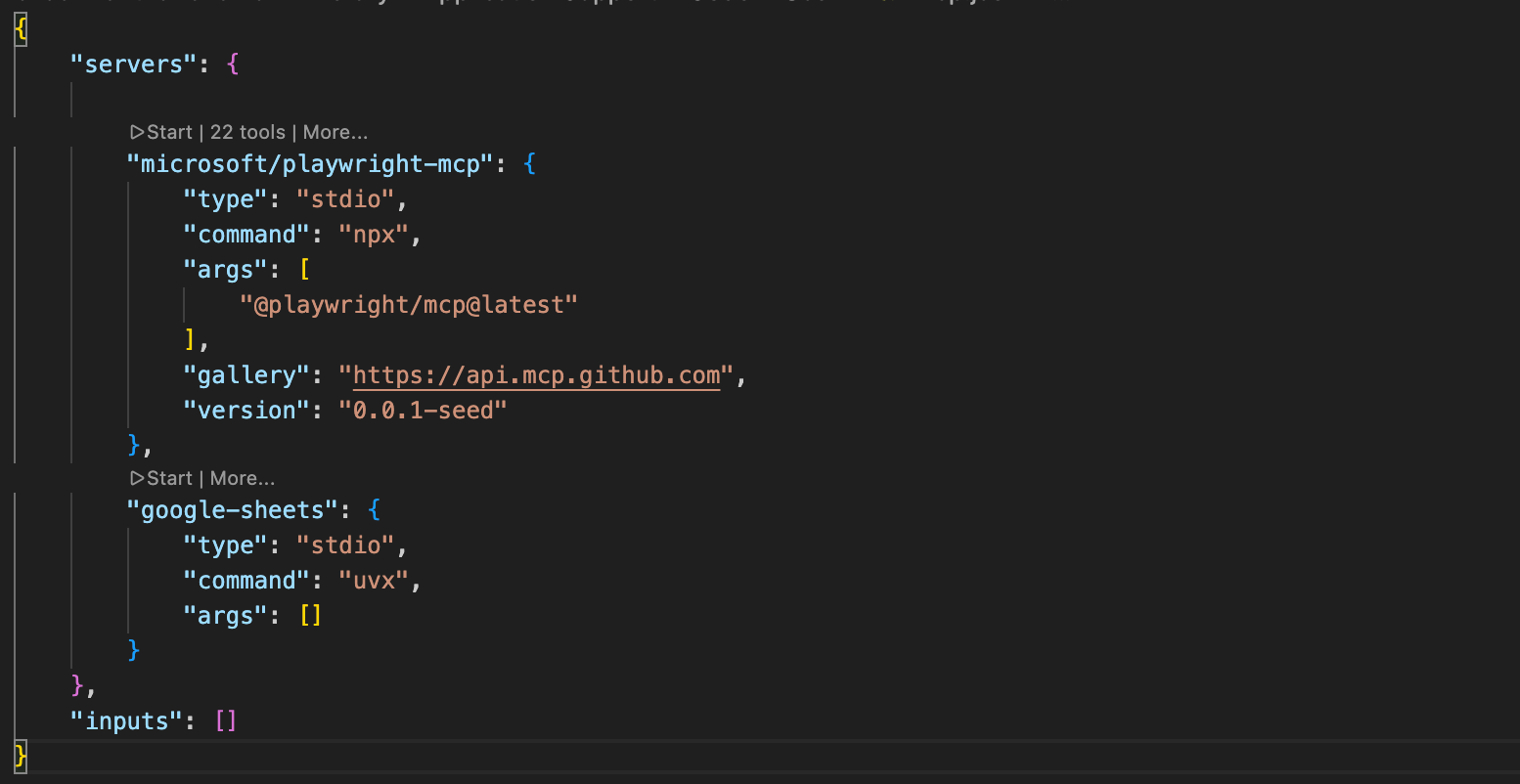
You might want to configure your server based on the requirement. Since we only need to view and update sheets, add appropriate args. This reduces the tokens used as stated in the repo.
- Hit Cmd + Shift + P or Ctrl + Shift + P and an input field would pop up.
- Type MCP: List Server and choose server configuration.
"args": [
        "mcp-google-sheets@latest",
        "--include-tools",
        "get_sheet_data,update_cells,list_sheets"
      ],
You can add what tools you would like to enable.
Your MCP.JSON should look similar to this.
Step 3: Verify if the servers are available
Just prompt “What MCP Tools can you use?” It should hopefully return Playwright and Google-Sheets MCP.
Step 4: Create test cases specific to the web app you are testing
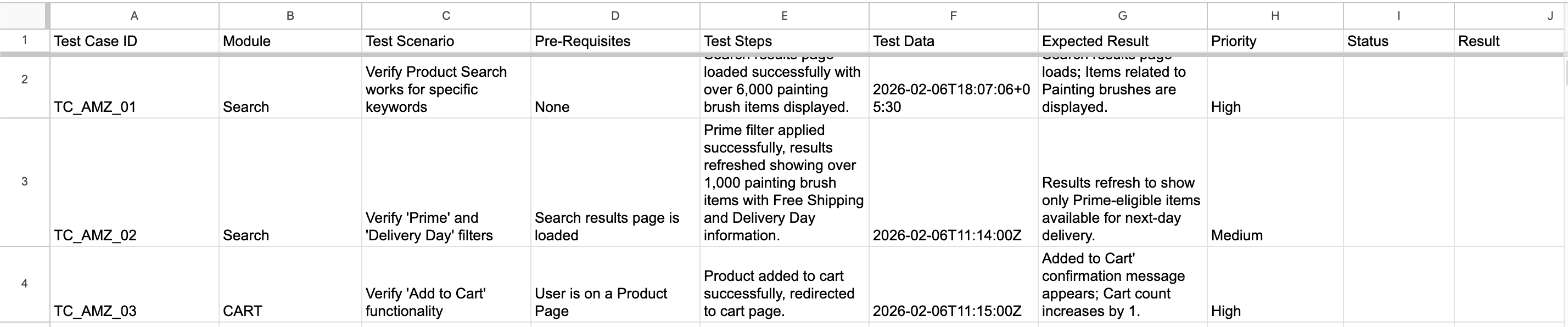
Keep it descriptive and add columns that state what kind of output you are expecting. Don’t make the spreadsheet complicated. I recommend columns such as
- Testcase_ID,
- Category,
- Purpose,
- Steps,
- Expected Results,
- Status,
- Result
Step 5: Running Test cases
Make sure to just test 5 test cases at a time. I have tested Claude Haiku 4.5, It seems to be the best as it doesn't consume ridiculous amount of credits and have Vision capabilities to perceive the page with screenshots.
Trying it out: Testing amazon.in
We are going to set up the Playwright to test out amazon.in by first having test cases as a spreadsheets.
- Set up the test cases as a Google Sheet.
2. Just open Copilot and prompt the LLM to execute the test cases.
-> using playwright MCP tool -> go to: https://www.amazon.in/
-> Show me the browser window where you are interacting live do not use headless mode.
-> use MCP tools from GoogleSheetEditor
-> Find the test cases from this Google Sheet File id: https://docs.google.com/spreadsheets/d/XX
-> execute "Test cases from 1 to 4 where status is not completed" and mark the status in the sheet with your findings.
3. That’s pretty much it. The LLM will find the test cases and go through each of them and update the results.

That’s it!
As you update the web app frequently, It’s becomes so easy to just let the LLM to handle the testing for you. It can save you so much time especially if you are a solo dev or part of a small team. Thank you!