Read with Claude
 Read with ChatGPT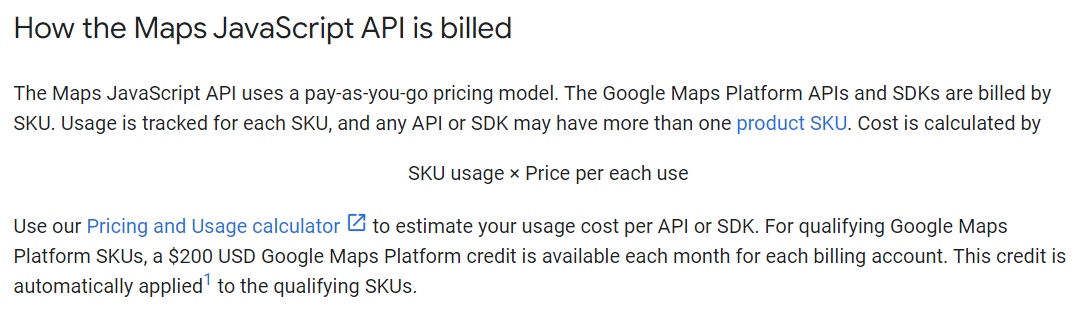
Google Maps provides a $200 credit per month to cover cost of requests to the Maps API. This is more than enough to cover the standard requests to the API.
Recently, in a project I was working on, we received a charge above and beyond the credits deducted. What surprised me was that the project was in development and we had not even deployed it for customer use. On digging deeper, we were able to narrow down the usage to 3 days. How could we have triggered more than 20000 requests per day over that time just in testing?!
The Project — Amber Food Ordering
Amber is a Next.js food delivery web application that simplifies the process of browsing restaurants, placing orders, and managing user accounts. With a focus on intuitive design and streamlined functionality, users can effortlessly explore restaurants, track order status, and make payments. For restaurant owners, Amber offers an efficient cloud-based solution for managing dishes and providing a seamless customer experience.

Google Maps played a key role in the app, helping us get the user location and get restaurants listed around the area.
One really important service we used from Google Maps is the Geocoding API. This nifty API helps us turn addresses into exact geographic coordinates, you know, latitude and longitude or vice versa. This is super important for making our location-based services work seamlessly.
When users pick a spot on the map, the frontend picks up the latitude and longitude from the map. Our frontend sends a request to the backend, which then talks to the Geocoding API to turn these coordinates into a regular address.
Another handy API is the Places Autocomplete API. It’s like your personal assistant when typing in a location. As users type, it gives them suggestions in real-time, making sure they input accurate location data.
The Problem
All was hunky dory as we went on with our test through the month. However, at the start of the next month, the APIs stopped working. The error message in the console was “Please enable billing in the Google Cloud Console”. We were surprised. We did have billing enabled! Perhaps a service agreement was updated and we had to accept the new terms, so the billing was temporarily put on hold.

It’s when we checked our Cloud console, we realised we had an outstanding bill of $226 to be cleared. Despite the project not being live and without users active on the site, this cost was totally unexpected.
We dug deeper to understand the reason for the charges and started analyzing the reports. Considering we are still in the early stages of development, we found that the expense was not associated with user-triggered stress tests but rather resulted from the default location set and repeated address calls to the same location.
We discovered that a upon deployment to the development server at Vercel, our local project, now unleashed upon the world, was continuously running. This ended up allowing the page render to run endlessly triggering a call to the Geocoding API with the default lat/lng credentials.
The Solution — Measures taken
1. Optimize API Calls & page reloads
Looking closer at the API calls from the frontend, conditional statements needed to be updated to ensure that requests are sent only when needed, preventing unnecessary loops. The initial implementation of the useEffect in App.js employed window.location.reload() to handle the absence of the data in local storage to trigger backend API on page reload. Unfortunately, this approach led to an unintended reload loop, triggering continuous API calls, if the backend response was delayed. Yes, it is a very bad practice, I realize. It was easy to do it, but it ended up costing us.
// App.js
// logo image url will be stored as "storelogo" key in local storage.
useEffect(() => {
    if (localStorage.getItem("storeLogo") == null) {
      window.location.reload();
    }
  }, []);
To address this issue, the reload logic was replaced with a call to the backend API to fetch the required data instead of reloading the page, preventing the loop from occurring. Sometimes, the simple solution is not the right one.
// App.js
const [storeLogo, setStoreLogo] = useState();

useEffect(() => {
  if (storeLogo == null) {
    // Additional conditions or actions can be added here.
    // to handle the absence of "storeLogo" more gracefully.
    // For example, setting a default value or redirecting to a specific page.
    fetchStoreLogo()
    setStoreLogo(localStorage.getItem("storeLogo"))
  }
}, [storeLogo]);
2. Check if state has default values
The encountered issue was exacerbated by Next.js rendering the entire screen initially. Specifically, the Manage Address page, expected to trigger only once, fell into a reload loop. This continuous reloading resulted in the useEffect repeatedly invoking the API with the same geolocation values.
const [markerPosition, setMarkerPosition] = useState({
    lat: geoLocationData?.geometry?.location.lat || 13.067439,
    lng: geoLocationData?.geometry?.location.lng || 80.237617,
  });
useEffect(() => {
  if (markerPosition.lat) {
        searchLocationsByCoordinate(
          markerPosition.lat,
          markerPosition.lng
        )(locationdispatch);
  }
}, [markerPosition]);
To address this, a check was made to see if the default values of markerPosition state had changed. If and only if this change was made, the API call was triggered.
const [markerPosition, setMarkerPosition] = useState({
  lat: geoLocationData?.geometry?.location.lat || 13.067439,
  lng: geoLocationData?.geometry?.location.lng || 80.237617
});
useEffect(() => {
  if (markerPosition.lat !== 13.067439 && markerPosition.lng !== 80.237617) {
        searchLocationsByCoordinate(
          markerPosition.lat,
          markerPosition.lng
        )(locationDispatch);
  }
}, [markerPosition]);
3. Cache API Data in the Browser
Save location data (like latitude and longitude) in the browser’s cache. This way, if the location remains the same, you won’t have to make repeated API calls, improving performance and reducing server load.
Caching API results with same parameters and reducing redundant API calls will save calls to the server and prevent rate limiting.
// Function to add our give data into cache
const addDataIntoCache = (cacheName, url, response) => {
    // Converting our response into Actual Response form
    const data = new Response(JSON.stringify(response));
    console.log(data);
    if ("caches" in window) {
        // Opening given cache and putting our data into it
        caches.open(cacheName).then((cache) => {
            cache.put(url, data);
            alert("Data Added into cache!");
        });
    }
};
To retrieve data from the cache, you can use the caches.match() method. Here’s how you can modify your code to retrieve data from the cache:
const getDataFromCache = async (cacheName, url) => {
  if ("caches" in window) {
    try {
      const cache = await caches.open(cacheName); // Open the cache
      const cachedResponse = await cache.match(url); // Check if URL is in the cache
      if (cachedResponse) {
        const data = await cachedResponse.json();
        console.log("Data retrieved from cache:", data);
        // Do something with the retrieved data
      } else {
        console.log("Data not found in cache");
      }
    } catch (error) {
      console.error("Error retrieving data from cache:", error);
    }
  }
};
Call the below function with Cache name and required url to retrieve data from cache:
getDataFromCache('yourCacheName', 'yourRequestedUrl');4. Set API restrictions for an API key
Setting an application restriction for a Google Maps API key involves configuring access limitations based on specified criteria, such as HTTP referrers, IP addresses, or application platforms. This enhances security by ensuring that the API key can only be utilized by authorized sources.
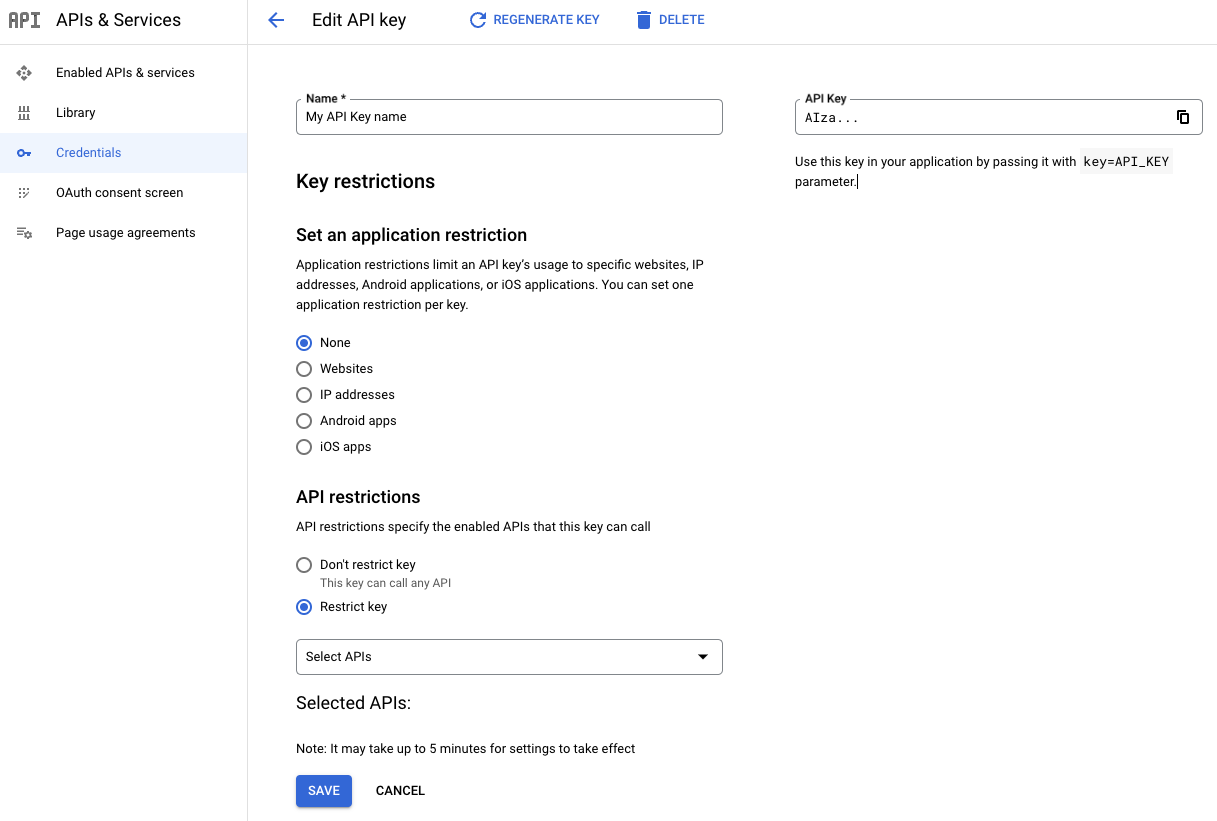
Refer https://developers.google.com/maps/api-security-best-practices for more insights.
5. Set Budget Alerts on Google Console
Set up budget alerts in the Google Cloud Console to get notified before reaching spending limits. This helps you avoid unexpected costs and keeps you aware of potential issues related to API usage, Because by default it was set to unlimited.
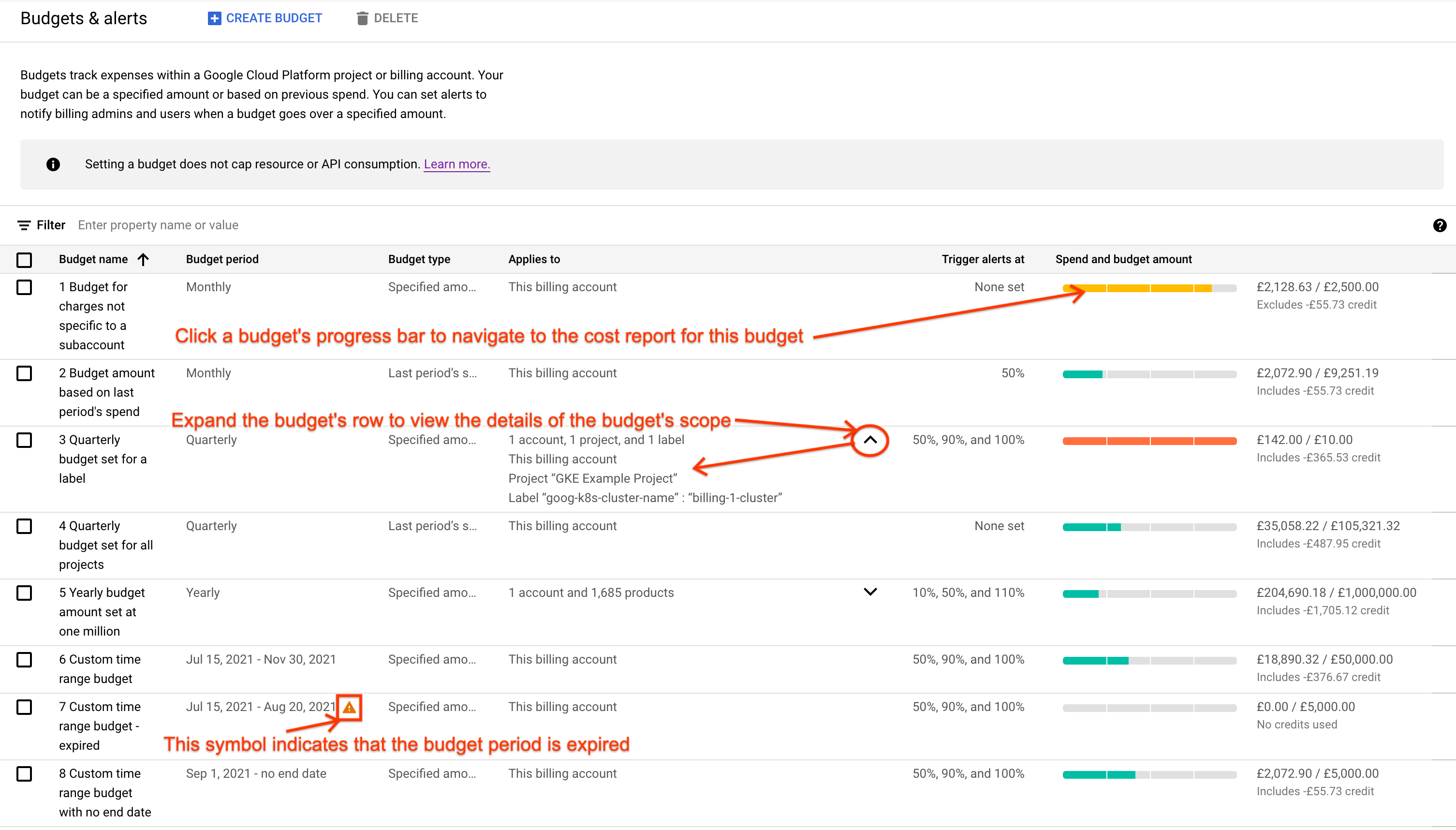
Refer https://developers.google.com/maps/optimization-guide#consumption_optimization for more insights
6. Configure Quota Limits
Set limits for your Google Maps API usage to control how much you use. Defining these limits helps prevent accidental spikes in API calls, which can lead to unexpected charges or performance problems.
Refer https://console.cloud.google.com/google/maps-apis/quotas&project=[project_id] for more insights
7. Automated Monitoring and Dev Server Shutdown
Implement automated checks during development to catch reload loops. If continuous reloads are detected, consider setting up an automatic shutdown for the development server to stop unintended API calls. This ensures quick identification and resolution during development.
Conclusion
It’s a reminder that even small oversights in the development process can lead to unforeseen challenges and expenses down the line. Through collaboration with Google Maps Platform support and implementing best practices for API usage, we not only resolved billing inaccuracies but also strengthened our development process to build more reliable and cost-effective applications in the future.
Special thanks to Kurt from “Google Maps Platform Billing Support” & Alex from Google Maps Platform Team, He aided us in resolving inaccuracies in the billing resulting from flaws in our development process, while also offering guidance to identify the source of the issue.