Read with Claude
 Read with ChatGPT
WordPress is a great platform if you are looking to get started with a website as it provides a extensive content management system. Using WordPress is generally user-friendly, but there are certain considerations to keep in mind to ensure a smooth and secure experience.
You may find yourself bogged down with a slow website or security vulnerabilities if you do not pay attention to certain aspects of your website. In this article, we are going to look at 8 essential things to keep in mind when working with WordPress.
1. Choose the right Hosting Provider
We have a wide range of options to install WordPress, from shared hosting to cloud hosting. Depending on the scope of your requirement and the plugins you use for your website, you will need to make a choice.
Shared Hosting
Starting out, you can choose to go with a shared hosting provider like GoDaddy or Bluehost. These platforms provide a cPanel interface with one-click installation and a management interface for updates and direct login. Shared hosting is a good start if you are only going to use few plugins.
Cloud hosting
As the number of plugins increase on your website, you may find your website slow down in loading. If the higher tiers of shared hosting plan do not serve your requirement, you can opt in for a cloud hosting provider like Digital Ocean. With the 1GB or 2GB droplet, you will find a much more optimized load time for WordPress. The use of Cloud hosting however requires you to install WordPress through the command line.
AWS EC2
As your requirements scale, you may find yourself with a hugh number of user visits and will need to scale your server dynamically. It is then you can opt in for a higher end cloud server like AWS EC2 with RDS for the database. Both your DB server and WordPress server can then be arhitected to use separate resources.
2. Securing your installation
WordPress is one of the most commonly used self-hosted CMS systems. Having being around for quite a while, it has its fair share of users and people trying to get into the system. As more people try to hack the system, vulnerabilities are more likely to be exploited. So, it becomes important to secure your installations by not making use of default preferences.
Table Prefix
Consider changing the default database table prefix from “wp_” to something more unique. This adds an extra layer of security by making it more difficult for potential attackers to guess table names.
.htaccess and wp-config.php Security
After installation, make sure that your .htaccess and wp-config.php files are secure. These files contain sensitive information and play a crucial role in the security of your WordPress site.
Install a Security Plugin
Consider installing a security plugin, such as Wordfence or Sucuri, immediately after installation to enhance your site’s protection against potential threats.
3. Access Credentials
Avoid using the default “admin” username for the administrator account. Choose a unique username and a strong, complex password. This helps protect your site from brute-force attacks. Further, make sure to provide a valid email account for the admin account, so it is easier for you to recover password if you forget it.
Limiting login attempts in WordPress is a good security practice to prevent brute force attacks. A brute force attack involves trying multiple username and password combinations until the correct one is found. To enhance security and protect your WordPress site, you can use a plugin that limits the number of login attempts.
4. File Permissions
Ensure that file and directory permissions are set correctly. Directories should have a permission of 755, and files should have a permission of 644. Incorrect permissions can lead to security vulnerabilities.
5. Update Permalinks
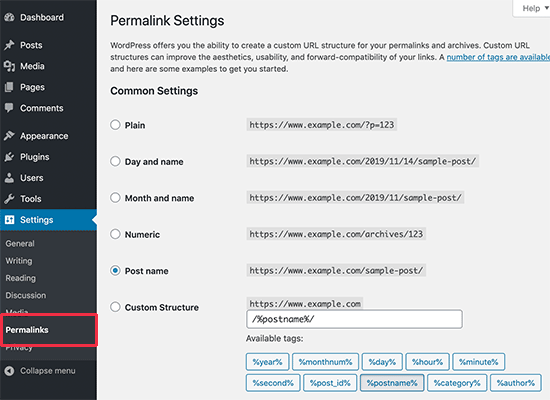
Set your preferred permalink structure early in the installation process. Go to “Settings” > “Permalinks” and choose a structure that is both SEO-friendly and reflective of your content structure.
Plain Permalinks
The default Plain Permalink also called the Ugly Permalink looks like this:
with p as the parameter and N is the unique ID of the post or page in the database.
WordPress comes preinstalled with this setting. It works on all server environments. It is not user-friendly and also not optimized for search engines.
Pretty Permalinks
Pretty Permalinks are SEO-friendly and attractive. They usually contain several words such as the title of the post or page, post category, tag name, etc. You can use Keywords in the URL to make your content readable by search engines. Pretty Permalinks also help others get an understanding of what the content of the page or post is by reading the URL.
Pretty Permalinks look like this:
http://example.com/2012/post-name/
or
http://example.com/2012/12/30/post-name
We would recommend to toggle the Pretty Permalinks option so that you have a more optimized URL.
6. Backup
Regularly back up your WordPress site, including both files and the database. Many hosting providers offer automated backup solutions, or you can use plugins like UpdraftPlus or BackupBuddy. Before making any major changes or installing additional plugins and themes, perform a backup. This ensures that you can restore your site if something goes wrong.
7. Keep Your Hosting Environment Updated:
Ensure that your hosting environment (PHP version, MySQL, server software) is up to date and compatible with the latest WordPress requirements. Upgrading the PHP version for a WordPress website is a good practice as it can bring performance improvements, security enhancements, and compatibility with the latest technologies.
As of writing this article, the recommended stable version of PHP is 7.4. However, it is better to prepare for the latest PHP version, which is 8.2. This ensures that you are safe form any vulnerabilities discovered in the older versions.
8. Stay Informed
Keep yourself informed about WordPress security best practices and updates. Follow the official WordPress blog and forums for the latest information. You can check the latest version of WordPress release on this website: https://wordpress.org/news/category/releases/.
As of writing this article, the latest version of WordPress is 6.3.2.
Conclusion
In conclusion, while WordPress offers a robust content management system for building websites, it’s crucial to navigate the platform with a focus on security, performance, and best practices. By paying attention to the above 8 points when using WordPress, you can set a strong foundation for a secure, efficient, and well-configured website.
Regularly reviewing and updating your site in line with best practices will contribute to a positive experience for both you and your visitors.